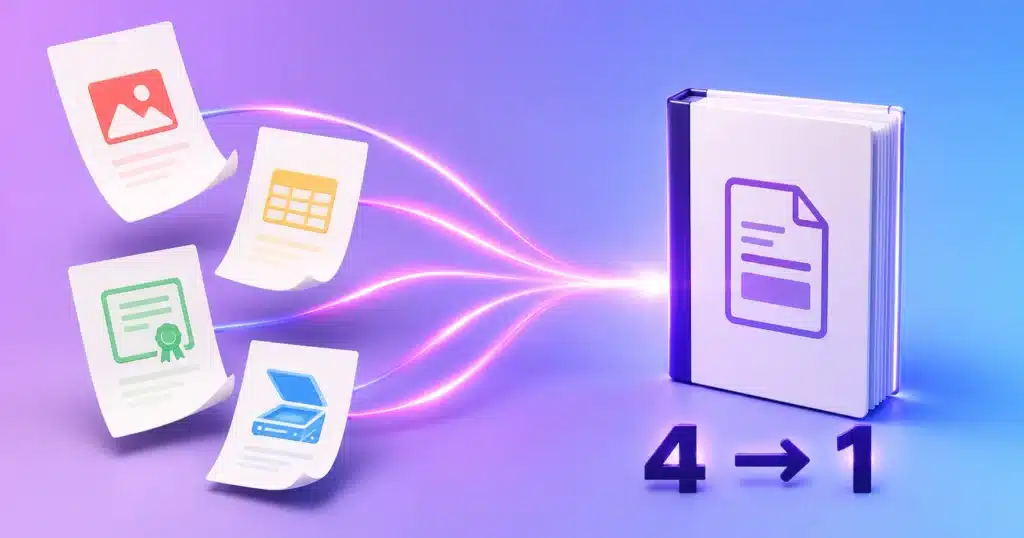
Scan, ID proof, cover letter, certificates — four files, and the portal accepts one. Merging PDFs is one of those tasks that feels like it should need software and does not: a modern browser can do it in a couple of seconds, without installing anything, without an account, and without your documents ever leaving your device.
Quick answer: open the free PDF Merger & Splitter, add your PDFs in the order you want them, press merge and download the combined file. It runs entirely in your browser — nothing is uploaded, there is no watermark and there is no page limit.
1Merge two or more PDFs
- Add your files. Select all of them at once, or add them one at a time. PDFs of any length are fine.
- Put them in the right order. The merged document follows the order in the list, so arrange it before you merge. Files are not sorted alphabetically for you — a scan named “IMG_0423” will not magically land where you meant it to.
- Merge. The pages are copied into a single new document exactly as they are.
- Download and check. Open the result and skim the page order once. Ten seconds of checking beats resubmitting an application.
The same tool splits in the other direction — pull a single page out of a long document, or break a report into sections — with page thumbnails you can select and rotate before exporting. Individual pages that arrived sideways can be turned the right way up with Rotate PDF, and if you need to reorder or drop pages inside one file, Organize PDF does exactly that.
Nothing is uploaded. Merging happens on your own machine inside the browser tab, which is what you want when the files are ID documents, contracts, medical records or bank statements. We also run a server-side Merge PDF page for very large or awkward files — there the file is uploaded over an encrypted connection and deleted within an hour. Every tool page says which of the two it is.
2Does merging reduce quality or increase file size?
Merging is lossless. Pages are copied into the new document as they are — no re-compression, no re-rendering, no quality loss. The size of the result is roughly the sum of the inputs, minus a little where fonts and resources are shared.
That is the catch most people hit: four 800 KB scans become a 3 MB PDF, and the portal caps uploads at 2 MB. Merge first, then compress — the PDF Compressor works far better on the combined file than on the pieces, and our guides for 500 KB and 1 MB or 200 KB targets show which setting to reach for.
3Merging things that aren’t PDFs yet
You cannot merge a JPG into a PDF directly — it has to become a PDF page first. That conversion is quick and free:
| You have | Convert with | Then |
|---|---|---|
| Photos or scans (JPG, PNG) | Image to PDF for a batch, or JPG to PDF for one | Merge the results |
| Word documents | Word to PDF (.docx, in your browser) | Merge with the rest |
| Excel sheets | Excel to PDF | Merge with the rest |
| Web pages | Webpage to PDF | Merge with the rest |
| Screenshots | Screenshot to PDF | Merge with the rest |
A tip for application bundles: convert everything first, name the files 01-, 02-, 03- and so on, and the order sorts itself out before you even open the merge tool.
4Common problems, and the fix
- “My PDF is password-protected.” Encrypted files cannot be read, so remove the password first with Unlock PDF. If you want to protect the finished bundle instead, Secure PDF adds AES-256 encryption in your browser.
- “The pages came out in the wrong order.” The merge follows your list, not the filenames. Reorder before merging, or fix it afterwards with Organize PDF.
- “Some pages are sideways.” Scanners do this constantly. Rotate them in the merger’s page view, or use Rotate PDF on the finished file.
- “The merged file is too big to upload.” Compress it after merging, or split the bundle if the portal accepts multiple files.
- “The browser slowed down.” Very large merges use memory. Close other tabs, or merge in two stages — combine A+B, then combine that with C+D.
- “I need to add page numbers to the bundle.” Add Page Numbers stamps the combined document once it exists.
5Browser or cloud — which should you use?
| PDF Merger & Splitter (browser) | Merge PDF (server) | |
|---|---|---|
| Your files | Never leave your device | Uploaded encrypted, deleted within an hour |
| Best for | Anything confidential; most everyday merges | Very large or awkward files |
| Speed | Instant — no upload wait | Depends on upload speed |
| Extras | Page thumbnails, rotate, split | Straight merge |
| Cost | Free, no sign-up, no watermark | Free, no sign-up, no watermark |
For nine merges out of ten, the browser tool is the right answer — it is faster and your documents stay put.
6Frequently Asked Questions
How do I combine multiple PDF files into one?
Open the PDF Merger, add every file in the order you want, press merge and download the combined document. It is free, needs no account and adds no watermark.
Can I merge PDFs without Adobe Acrobat?
Yes. Merging is a standard operation that a browser can perform locally — you do not need Acrobat, a subscription or any installed software.
How do I merge PDF files on my phone?
The same way. The tool works in Chrome and Safari on Android and iOS, so you can combine documents from your phone’s files or downloads folder. Very large merges are better done on a computer because phone browsers have less memory.
How do I combine JPG images into one PDF?
Convert the images to PDF first with the Image to PDF tool, then merge the results. Naming them 01, 02, 03 before you start keeps the order right.
Does merging PDFs reduce the quality?
No. Pages are copied across unchanged, so there is no re-compression and no quality loss. The merged file is roughly the size of the originals added together — compress it afterwards if there is an upload limit.
Is it safe to merge PDFs online?
It depends on where the processing happens. A browser-based merger never sends your file anywhere, which is the safest option for confidential documents. If a site uploads your files, check that it states a deletion policy — ours deletes server-processed files within an hour.
One bundle, right order, nothing uploaded. Then hit submit.