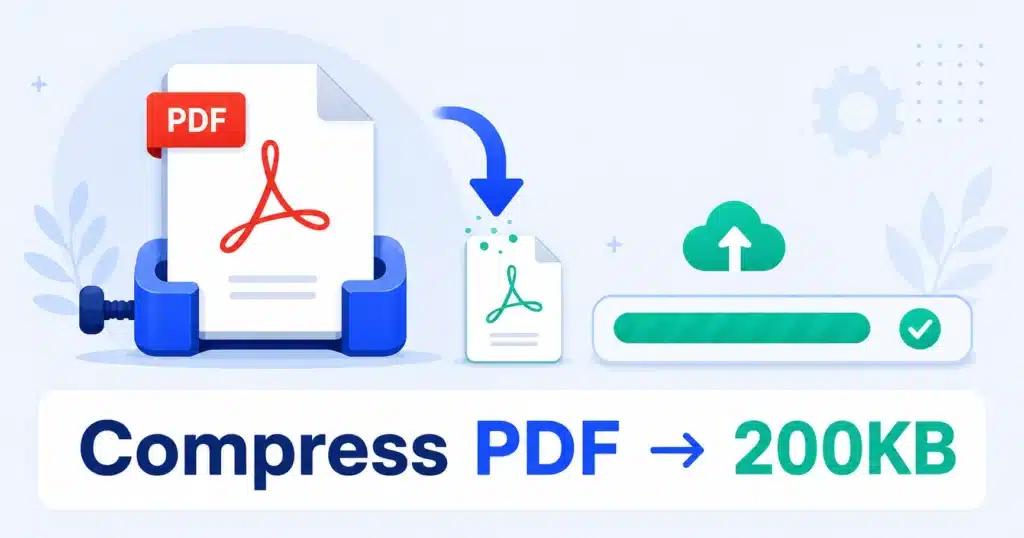
A job portal, government form or email attachment limit says your PDF must be under 200KB — and yours is 2MB. Here’s how to shrink it in under a minute, free, with no watermark and no sign-up.
Quick answer: open the free AMTake PDF Compressor, upload your PDF, choose a stronger compression level until the preview shows under 200KB, and download. The file is processed in your browser — it never uploads to a server.
1Compress a PDF to 200KB in 3 steps
- Open the compressor Go to the PDF Compressor and drop in your PDF. Nothing uploads — processing happens on your own device, so even sensitive documents are safe.
- Pick the compression level Start with the balanced setting and check the output size. Still above 200KB? Step up to stronger compression — image-heavy PDFs shrink dramatically.
- Download and verify Download the compressed file and check its size shows below 200KB before uploading it to the form. Aim close to the limit — 190KB keeps more quality than 80KB.
2Where the 200KB limit comes from
200KB is one of the most common document upload limits. Typical places you’ll hit it:
| Where | Typical PDF limit |
|---|---|
| Government & exam application portals | 100KB – 300KB per document |
| Job application systems | 200KB – 500KB for resumes |
| University admission uploads | 200KB – 1MB per certificate |
| Visa / immigration portals | 200KB – 500KB per scan |
| Bank KYC document uploads | 100KB – 500KB |
Need a different target? The same tool handles any size — and we have dedicated guides for compressing to 100KB and other limits.
3Still above 200KB? Do this
A PDF’s size is almost always its images. If maximum compression still isn’t enough:
- Remove pages you don’t need. Use Delete PDF Pages — dropping one scanned page often saves more than any compression setting.
- Split the document. If the portal allows multiple files, split the PDF and upload it in parts.
- Rebuild from smaller images. For scanned documents: compress the scan images first with the Image Compressor, then rebuild the PDF with Image to PDF. This gives you direct control over the final size.
- Re-scan at lower resolution. 150–200 DPI in grayscale is plenty for documents; 600 DPI colour scans are 10× heavier for no benefit on an upload form.
Don’t over-compress documents people must read. If text looks fuzzy after compression, the reviewing officer may reject the document anyway. Target just under the limit, not the smallest possible file.
4Is it safe to compress sensitive documents online?
Certificates, ID scans and bank documents are sensitive — and many “free PDF compressor” sites upload your file to their servers. The AMTake PDF Compressor runs entirely in your browser: your PDF never leaves your device, nothing is stored, and it keeps working even offline once the page loads.
5Frequently Asked Questions
Can I compress a PDF to exactly 200KB?
You don’t need the size to be exact — forms accept anything under the limit. Pick the compression level that lands closest below 200KB for the best quality-to-size balance.
Will compressing reduce the quality of my PDF?
Text stays sharp — compression mostly re-encodes images inside the PDF. At balanced settings the difference is barely visible; only maximum compression on photo-heavy files shows visible softening.
How do I compress a scanned PDF to 200KB?
Scans are pure images, so they compress well. If one pass isn’t enough, rebuild it: compress the page images with the Image Compressor, then combine them with Image to PDF.
Can I compress a password-protected PDF?
Remove the password first with Unlock PDF (you need to know the password), compress it, then re-protect it with Protect PDF.
Does this work on my phone?
Yes — the compressor runs in any modern mobile browser, so you can fix a rejected upload right from your phone.
Is there a file size or usage limit?
No accounts, no daily limits, no watermarks. Very large PDFs (hundreds of MB) are limited only by your device’s memory, since processing is local.
Under a minute, under 200KB, and your document never leaves your device.