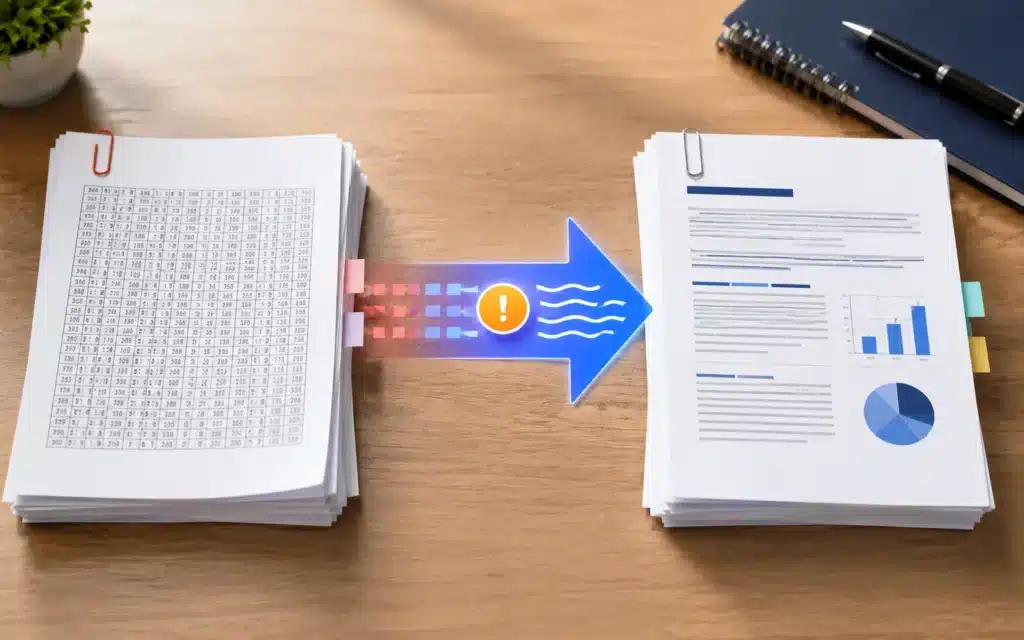
Everyone has had this moment: you convert a clean, professional PDF to Word and open a document where the text is in one long column, the table has become a jumble, and every second line has an invisible break in it. The instinct is that you picked a bad converter. Usually you did not. PDF and Word are built on incompatible ideas about what a document is, and once you understand that, you can predict exactly which parts of your file will survive and plan around the rest.
Quick answer: first check whether you can select the text in your PDF. If you can, the free PDF to Word Converter will give you an editable .docx in a few seconds, entirely in your browser — nothing is uploaded. If you cannot select the text, it is a scan, and no converter can help until the words have been read out of the image by OCR.
1The three-second test that decides everything
Open the PDF and try to drag-select a sentence.
| What happens | What you have | What to do |
|---|---|---|
| The text highlights, word by word | A born-digital PDF with a real text layer | Convert directly — everything in this guide applies |
| You get a blue box over the whole page | A scan or photo — the “text” is a picture | OCR first (section 6), then convert |
| Text highlights but pastes as gibberish | Broken or subsetted font encoding | OCR is often more reliable than the text layer here |
| You cannot select or open it at all | Password-protected | Remove the password (you need to know it) before converting |
This one test is why some people swear online converters are excellent and others swear they are useless. They are converting two completely different kinds of file.
2Why perfect conversion is impossible (and what that means for you)
A Word document is a sequence of meaning: this is a Heading 1, this is a paragraph, this is a table with three columns, and text flows from one to the next. Resize the window and everything reflows, because Word knows what each thing is.
A PDF is a set of drawing instructions: put this glyph at x=72, y=684 in this font at this size; put the next glyph at x=79. It is closer to a printed page than to a document. A PDF does not, in general, record that two lines belong to the same paragraph, that a run of numbers is a table, or that a large bold line is a heading. Those things are visually obvious to you and simply absent from the file.
So every PDF-to-Word converter in existence — free, paid, desktop or cloud — is doing the same thing: reading positioned glyphs and guessing the structure back. Good converters guess well. None of them can recover information that was never stored.
What typically survives a PDF → Word conversion
Rough guide for a typical born-digital business or academic document. A simple single-column report converts close to the top of this chart; a designed brochure or a journal paper in two columns lives near the bottom.
The one promise to distrust: “converts your PDF to Word with 100% original formatting”. No tool does this, because the original formatting was never in the file. What a good tool gives you is clean, correctly ordered, genuinely editable text — which is what you actually needed.
3Convert it, step by step
- Open the converter. PDF to Word Converter — free, no sign-up, no watermark. The conversion runs inside your browser tab, so the file never leaves your computer.
- Drop the PDF in. Drag it onto the box or click to browse.
- Decide on “Detect headings automatically”. Leave it on for reports, theses and anything with a structure you want to keep — it turns visually larger lines into real Word headings so the navigation pane and table of contents work. Turn it off for a flat document like a letter, where heading detection just creates noise.
- Decide on “Keep page breaks”. On is right when the page boundaries mean something (contracts, forms, anything you will print back to the same pagination). Off is right when you want one continuous flowing document to rewrite.
- Convert and download the .docx. Open it in Word, Google Docs, LibreOffice or WPS — .docx opens in all of them.
- Do the four repairs below before you start editing properly. Ten minutes here saves an hour of fighting the document later.
4The four repairs every converted document needs
- 1. Kill the stray line breaks. The classic symptom: your paragraph will not reflow when you edit it, because every printed line ended up as its own line. In Word, turn on formatting marks (Ctrl+Shift+8) to see them, then use Find and Replace with wildcards to join lines that do not end in a full stop. On a long document this is the single highest-value fix.
- 2. Reapply styles, do not hand-format. Select your headings and apply Word’s Heading 1/2/3 styles rather than manually making them bold and large. You get a working navigation pane, an automatic table of contents, and a document that stays consistent.
- 3. Rebuild tables rather than nursing them. A table that converted into text separated by tabs or spaces is faster to rebuild than to repair. Select the block and use Insert → Table → Convert Text to Table. If the table is the whole point of the file, do not convert to Word at all — see the next section.
- 4. Set one font for the body. Converted documents often carry a mixture of font names lifted from the PDF, some of which you do not have installed. Select all, set a single body font, then restyle the headings. The document instantly stops looking assembled from spare parts.
5Sometimes converting to Word is the wrong move entirely
Word is the answer when you need to rewrite the content. If you need something else, there is a shorter route:
| What you actually want | Better route |
|---|---|
| Just the words, to paste elsewhere | PDF to Text — no layout to fight, nothing to clean up |
| The numbers out of a table | PDF to Excel, which keeps rows and columns as cells |
| To sign or initial the document | Add Signature to PDF — stay in PDF, keep it valid |
| To fix a typo or two | Edit PDF pages — a round trip through Word for one word is never worth it |
| To reorder, delete or split pages | PDF Merger & Splitter |
| To make it smaller for an upload limit | PDF Compressor |
6Scanned PDFs: the OCR path
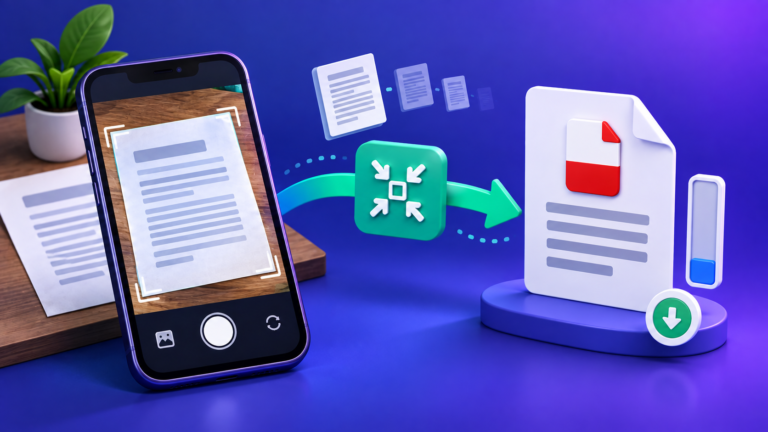
If your PDF came from a scanner, a photocopier or a phone camera, each page is a photograph. There is no text to convert — only pixels arranged in the shape of letters. Optical Character Recognition reads those shapes and produces text.
- Confirm it is a scan. The selection test in section 1. A converter that reports “no selectable text found” is telling you the same thing.
- Run OCR on the pages. Use the Image to Text (OCR) tool, or the Image to PDF with OCR tool if you want a searchable PDF back rather than raw text.
- Read the output critically. OCR accuracy depends almost entirely on scan quality. Straight, high-contrast, 300 DPI pages come out excellent. Phone photos taken at an angle in poor light come out badly, and no amount of software fixes a blurry source.
- Proofread the risky characters. OCR’s reliable failure points are 0/O, 1/l/I, 5/S and 8/B — which means account numbers, invoice references and dates deserve a manual check every single time.
- Paste into Word and format from scratch. There is no layout to preserve from a scan, so build it the way you want it.
If you are the one doing the scanning: scan at 300 DPI in greyscale, flat against the glass, and OCR accuracy jumps. 600 DPI helps only with small print; 150 DPI is where results start falling apart. For phone captures, use a document-scanner app that corrects the perspective rather than the plain camera.
7Privacy, file size and the things worth checking
- Where the conversion happens matters. Our PDF to Word conversion runs in your browser using JavaScript — the file is read locally and the .docx is built locally. For a payslip, a contract or a medical report, that is the difference between a private operation and an upload to a stranger’s server.
- Big files are limited by your device, not a plan. Because the work is local, the practical ceiling is your browser’s memory. A 300-page PDF on an older phone may struggle; the same file on a laptop is fine.
- Check the whole document, not the first page. Conversion problems cluster where layout gets complicated — appendices, tables, anything landscape. Scroll to the end before you assume it worked.
- Keep the original PDF. Always. The converted .docx is a working copy, not a replacement, and you will want to compare against the original at least once.
8Frequently asked questions
Is it really free, and will there be a watermark?
Free, no sign-up, no watermark and no page cap. The conversion happens in your browser, so there is no server cost for us to recover by watermarking your document.
Do you upload or keep my PDF?
No. The file is read by your browser and the Word document is generated on your device. It never reaches our servers, so there is nothing for us to store or delete.
Why is my converted document missing the images?
Converters concentrate on the text layer, which is what makes a document editable. Pictures, logos and charts are drawn objects that generally do not carry across. If you need one, open the PDF, screenshot or export that image separately, and place it in the Word file yourself.
Can I convert back afterwards?
Yes, and this round trip is common: convert to Word, edit, then export back to PDF from Word (File → Save as PDF) or with the Word to PDF Converter. Note that the returned PDF will look like your edited Word document, not like the original — the design of the source file is not recoverable.
My PDF is password protected. Can I convert it?
Not until the password is removed, and you need to know it to do that legitimately. Remove it in a PDF reader, or in the Secure PDF tool, then convert the unlocked copy.
Which is better, converting to Word or to Google Docs?
Convert to .docx either way — then upload that file to Google Drive and open it with Docs. Going straight to Google Docs internally does the same guessing, and starting from a .docx gives you a local copy you can keep.
The text came out in the wrong order. Why?
Almost always a multi-column layout. Because a PDF stores glyph positions rather than logical flow, the converter reads across the page and interleaves the two columns. There is no setting that fixes this reliably — for a two-column journal paper, extract the text and reassemble the columns by hand, or work from the publisher’s original file if you can get it.