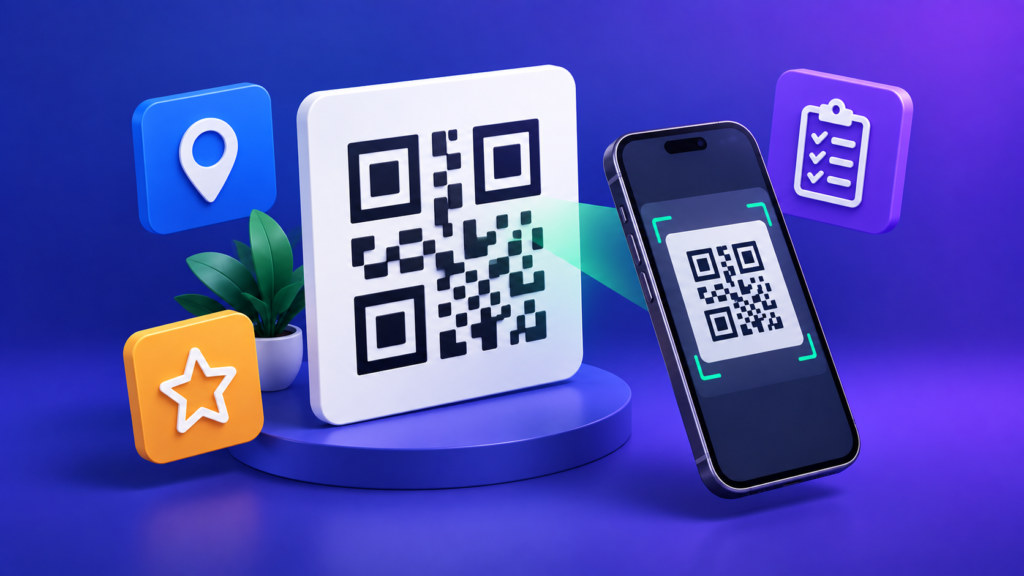
A QR code is just a picture of some text, usually a web address, that a phone camera can read. Making one takes a minute. The part people get wrong is choosing the kind of code, because that decides whether it keeps working after you print a thousand flyers. This guide covers both: how to make codes for a link, a Google Form, a location or Google reviews, and whether a QR code can expire.
Quick answer: a static QR code stores your link inside the pattern itself, so it never expires and needs no account. A dynamic QR code stores a short link belonging to the company that made it, and it works only as long as that company keeps the link running. The free AMTake QR Code Generator makes static codes, in your browser, downloadable as PNG or SVG.
1Do QR codes expire?
The pattern itself never expires. Whether a code keeps working depends on what is stored in it:
| Static QR code | Dynamic QR code | |
|---|---|---|
| What the code contains | Your actual link, text or details | A short link owned by the QR service, which forwards to your link |
| Can it expire? | No. It works as long as your own link works | Yes, if the service stops forwarding it, for example when a subscription ends |
| Can you change it after printing? | No. Make a new code | Yes, change where it forwards to |
| Scan counts | No | Usually, because every scan passes through the service |
So when someone says a QR code “stopped working”, it is almost always one of two things: a dynamic code whose service switched off the forwarding link, or a static code whose own link broke, because the page was deleted, the form was unpublished or the address changed. A static code cannot break on its own.
Before you print, check what the generator gives you. If a site asks you to sign up, offers scan statistics or lets you edit the code later, it is making a dynamic code, and that code depends on the site from then on. Scan the code yourself: if the address that appears is the site’s own short link rather than yours, it is dynamic.
2Make a QR code for any link
- Copy the link Open the page in your browser and copy its full address from the address bar.
- Create the code In the QR Code Generator, choose Website URL as the type and paste the link.
- Choose the error correction Medium is the default and fine for most uses. Choose High if you add a logo or the code will be printed somewhere it could get scuffed (see section 6).
- Download and test Download PNG for screens, WhatsApp or documents, and SVG for print, since SVG stays sharp at any size. Then scan it with two different phones before you print anything.
3A QR code for a Google Form
A form’s QR code needs the responder link, the one people fill the form in with, and the form must be published. Google’s help page is clear that responders with the link can’t open an unpublished form.
- Publish the form In Google Forms, use the Publish button.
- Copy the responder link Click Share, then Copy responder link. Tick Shorten URL first: a shorter link makes a simpler code that scans more easily.
- Make the code Paste the link into the QR Code Generator as a Website URL.
The code keeps working for as long as the form stays published. If you unpublish or delete the form, the code opens an error page, so reuse the same form rather than making a new one each time.
4A QR code for Google reviews
Google gives every Business Profile a link that opens the review box directly. On a computer:
- Open your Business Profile Go to your Business Profile on Google.
- Get the link Select Read reviews, then Get more reviews, and select Copy.
- Make the code Paste the link into the QR Code Generator as a Website URL, then add your logo and colours if you like.
Google’s own page can also show a ready-made QR code, but its help page notes that review QR codes can currently only be generated on a computer browser. The link works the same either way.
Don’t offer anything for reviews. Google’s help page states that offering incentives, like free or discounted goods or services, in exchange for reviews is considered fake engagement and is strictly prohibited. Put the code on a counter card or a receipt with a simple “Tell us how we did”, and nothing more.
5A QR code for a location
There are two ways, and they open different things:
- A Google Maps link (opens Google Maps at your place). In Google Maps on a computer, find the place, open the Menu, choose Share or embed map, then Send a link and Copy link. Paste it into the generator as a Website URL. People see your business name and reviews, and can tap for directions.
- Coordinates (opens the phone’s own map app). Choose Location (geo) in the generator and enter the latitude and longitude, for example 22.5726, 88.3639. The code holds a standard geo: link, which opens whatever map app the phone uses. It is best for a gate, a stall or a spot with no business listing.
6Getting it to scan every time
- Pick the right error correction. A QR code carries spare data so it can still be read when part of it is damaged. DENSO WAVE, which developed the QR code, defines four levels that can restore about 7% (L), 15% (M), 25% (Q) and 30% (H) of the code. Higher levels make a denser code, so use M normally and H when a logo covers the centre.
- Leave the blank margin. DENSO WAVE specifies a clear margin four modules wide on every side, where a module is one of the code’s small squares. Don’t crop the code tight or print it against a busy background.
- Keep it dark on light. A dark code on a light background with strong contrast is what scanners are built for. Pale colours and inverted (light-on-dark) codes fail on some phones.
- Keep the link short. Every extra character adds squares. A shortened form link or a clean page address gives a bolder, easier code.
- Test at the final size. Print one copy at the real size and scan it from where people will actually stand, with an Android phone and an iPhone.
7Other codes you can make
The QR Code Generator also makes codes that do something when scanned, with no web page involved:
- Wi-Fi: guests scan to join your network without typing the password.
- vCard contact: saves your name, phone and email straight into the contacts app. Good on business cards.
- Email, phone and SMS: open a new email, a call or a text message ready to send.
- Event: adds a date and time to the phone’s calendar.
- Plain text: shows a short message, with no internet needed.
8Frequently Asked Questions
Do QR codes expire?
A static QR code never expires, because your link or text is stored in the pattern itself. A dynamic QR code can stop working, because it stores the QR service’s own short link, and that link works only while the service keeps it active.
Can I change a QR code after printing it?
Not a static one: the content is fixed in the pattern. You can, however, change what the link opens, for example by updating the web page it points to. A dynamic code can be redirected, but it then depends on the service that made it.
Do I need permission or a licence to use QR codes?
No. DENSO WAVE, which developed the QR code, states that no licence is needed to use QR codes made to the JIS or ISO standards.
Why won’t my QR code scan?
The usual causes are a missing blank margin, low contrast or light-on-dark colours, a logo that covers too much of the code, or printing it too small for the distance. Try High error correction, a plain white margin and a larger print.
Can I see how many people scanned my QR code?
Not with a static code, because the scan goes straight to your link. Scan counts need a dynamic code, or you can add a tracking parameter to your own link and read it in your website’s analytics.
Is my information uploaded when I make a code?
No. The AMTake QR Code Generator creates the code in your browser, so your link, Wi-Fi password or contact details are not sent to our server.
9Sources
- DENSO WAVE, Error correction feature and Point for determining the code area (the four-module margin)
- DENSO WAVE, QR Code FAQ (licence and trademark)
- Google Docs Editors Help, Publish and share your form with responders
- Google Business Profile Help, Create a Google link or QR code to request reviews
- Google Maps Help, Share a map or directions with others
QR Code is a registered trademark of DENSO WAVE INCORPORATED.