Upload forms for jobs, exams, scholarships and KYC often ask for a PDF under 200 KB, sometimes under 100 KB. The trouble is that the photo you took of your document is usually 2–5 MB, and many JPG-to-PDF converters make the file bigger, not smaller. This guide shows the order of steps that gets under the limit every time, with sizes we measured rather than guessed.
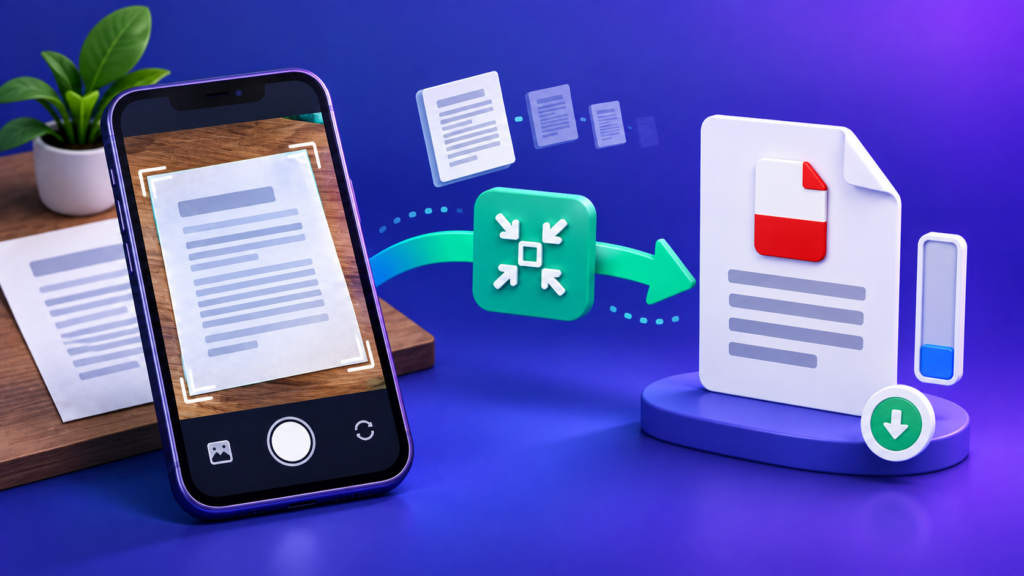
Quick answer: make the JPG the right size before you convert it. Resize the photo to 827 × 1169 px (A4 at 100 DPI), compress it to a target just under your limit, such as 190 KB, then turn it into a PDF with the page size left on Fit to image. A PDF made that way comes out within 1 KB of the JPG inside it. All three tools are free and run in your browser.
1Why the PDF is as big as the photo
A PDF made from a photo is mostly just that photo, stored inside a small wrapper. We checked: a 257.9 KB JPEG placed on a page as-is gave a 258.5 KB PDF. The wrapper added 694 bytes. So the PDF can only be as small as the JPG you put in it.
And phone photos are big. A 12-megapixel photo is about 3000 × 4000 pixels, which on an A4 page is more than 350 dots per inch (DPI). A reviewer reading a certificate on screen needs a fraction of that. Most of those kilobytes are detail nobody will ever see.
Converters make it worse in two ways: some re-save the photo at maximum quality, and some place it on a page at a high resolution. Either can leave you with a PDF larger than the photo you started with.
2The three-step method
- Resize the photo Open the Image Resizer, choose The longest side and enter 1169. That is A4 at 100 DPI: sharp enough to read printed text on screen, a small fraction of a phone photo’s size. Crop away the table or floor around the page first if you can; it is dead weight.
- Compress to a target Open the Image Compressor, choose JPG and a target size a little under your limit: 190 KB for a 200 KB form, 95 KB for a 100 KB one. The target is a ceiling, so the tool picks the highest quality that fits and shows the size it reached.
- Convert to PDF Open the Image to PDF Converter and leave Page size on Fit to image (no borders) and Margin on None. With those settings, a JPG is placed in the PDF untouched, so it is not compressed a second time and the PDF stays within about 1 KB of the JPG.
Check it before you upload. Open the PDF and zoom to 100%. If you can’t read the smallest line comfortably, a reviewer can’t either, and a file that is small but unreadable gets rejected just the same. Go back to step 2 with a higher target, or use fewer pages.
3How much a document photo weighs
We made a test photo of a printed A4 page, with paper texture, uneven lighting and a stamp, and saved it at different sizes and JPEG qualities. Your own page will differ, since a page full of small print weighs more than a short letter, but the pattern holds:
| Image size | Quality 50 | Quality 70 | Quality 90 |
|---|---|---|---|
| Phone photo, 3000 × 4000 px | 726 KB | 897 KB | 1,533 KB |
| A4 at 150 DPI, 1240 × 1754 px | 212 KB | 268 KB | 453 KB |
| A4 at 100 DPI, 827 × 1169 px | 102 KB | 131 KB | 224 KB |
What that means for your limit:
- Under 200 KB: A4 at 100 DPI fits at a good quality. At 150 DPI, even quality 50 in our test was just over the limit.
- Under 100 KB: 100 DPI at quality 50 was still 102 KB, so a busy page needs slightly fewer pixels as well. The Image Compressor can also reduce the pixel size for you when the target cannot be reached otherwise: leave Resize the image if that is the only way to reach it ticked (it is on by default). For a single short document, a longest side of about 1000 px is a reasonable place to start.
- Grayscale helps less than you would think. In our test, black-and-white versions were only about 5–10% smaller, because a JPEG already stores colour at a lower resolution than brightness. Reduce the pixels first; that is where the savings are.
4Several pages in one PDF
The limit applies to the whole file, so divide it between the pages. For a 200 KB limit and three pages, each page gets about 60 KB: resize each photo, compress each one to about 60 KB, then add them to the Image to PDF Converter together, in the order you want the pages. It puts one image on each page and makes a single PDF.
If the result is still a little over, it is almost always one heavy page, usually a photo with a dark background or a lot of texture. Compress that page harder rather than all of them.
5Why the same settings give different sizes on a phone and a laptop
If you choose A4 as the page size instead of Fit to image, the Image to PDF Converter redraws the photo at the size it will appear on the page, multiplied by your screen’s pixel density, so that it looks sharp on the device you used. That makes the file size depend on your device. With our test photo:
| Device | Photo redrawn at | “Smaller file” | “Balanced” |
|---|---|---|---|
| Laptop or desktop screen | 595 × 794 px | 98 KB | 124 KB |
| Phone or high-resolution screen | 1191 × 1587 px | 269 KB | 336 KB |
So on a laptop, A4 plus Smaller file can get a page under 200 KB in one go, while on a phone the same choices usually will not. The three-step method avoids the problem: you fix the pixel size yourself, and Fit to image keeps it exactly as you made it, on any device.
6Already have a PDF that is too big?
If the PDF already exists, or it came from a scanner, compress the PDF itself instead. Our guides to compressing a PDF to 200 KB and compressing a PDF to 100 KB cover that, including scanned PDFs that refuse to shrink. Applying for an exam as well? Our exam photo and signature size chart lists the photo and signature sizes each exam portal wants.
7Frequently Asked Questions
How do I convert a JPG to a PDF under 200 KB on my phone?
Use the same three steps in your phone’s browser: resize the photo to a longest side of 1169 px, compress it to about 190 KB, then convert it with the page size left on Fit to image. Avoid choosing A4 on a phone, because the converter redraws the photo at your phone’s higher pixel density and the PDF comes out larger.
Why is my PDF bigger than my JPG?
The converter changed the picture on the way in. Some converters re-save the photo at maximum quality, and placing a photo on a fixed page size can redraw it at a higher resolution. When the JPG is embedded untouched, the PDF is only a few hundred bytes larger than the JPG.
Can a JPG become a PDF under 100 KB?
Yes, for one or two pages. Resize the photo to A4 at 100 DPI or a little smaller, compress it to about 95 KB, and convert it with Fit to image. Check that the smallest text is still readable at 100% zoom before you upload it.
How do I combine several JPGs into one PDF under 200 KB?
Divide the limit by the number of pages, compress each photo to its share (about 60 KB each for three pages), then add them all to the Image to PDF Converter in page order. It makes one PDF with one image per page.
Does converting to black and white make the PDF much smaller?
Not much. In our test, grayscale versions of a document photo were about 5–10% smaller than colour ones at the same quality. Reducing the pixel size saves far more.
Are my documents uploaded anywhere?
No. The Image Resizer, Image Compressor and Image to PDF Converter all process the files in your browser, on your own device. Only upload the finished PDF to the official portal.