Image to PDF
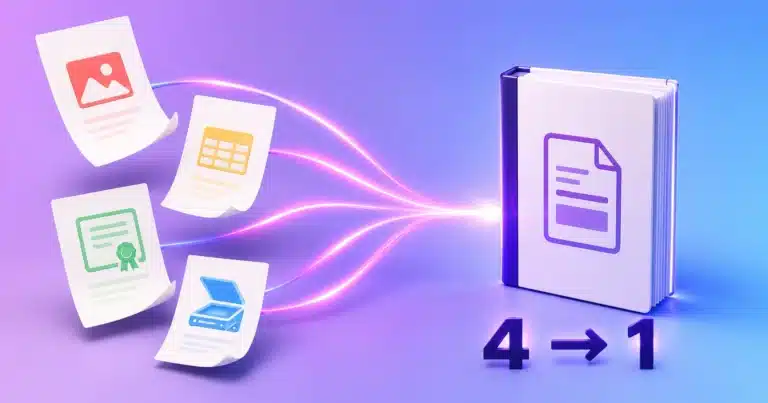
Combine JPG, PNG, WebP, GIF, BMP, AVIF or SVG images into one PDF — in your browser, with page size, margin and fit controls.
Drag & drop your PDF here
or click to select file
User Guide
Add your images
Drag in JPG, JPEG, PNG, WebP, GIF, BMP, AVIF or SVG files, or click to browse. Add up to 30 at once — each becomes one page, in the order shown. The settings and the preview appear as soon as the first file lands.
Choose the page size
Fit to image makes every page exactly its own image’s size, with no borders. A4, Letter, Legal and A3 produce standard sheets. Orientation and image fit only apply to a fixed size, so they stay disabled while Fit to image is selected.
Set margin and fit
Margins of 5, 10 or 20 mm add white space for printing or binding. Fit inside never crops; Fill page covers the sheet and trims the overflow; Stretch forces the image to the page shape and will distort it.
Pick a background — or keep transparency
Choose one of five preset colours or any custom colour for the paper behind your image. Keep transparency preserves a PNG’s alpha channel instead, so the two are mutually exclusive: choosing a colour releases transparency, and vice versa.
Watch the preview
The original image and the page it becomes sit side by side, updating as you change any setting. The caption gives the page size in points and millimetres, and the print resolution in PPI — the number that decides whether a print looks sharp.
Convert and download
Everything runs inside this browser tab — no upload, no queue, no server. Name the file if you like. Reset clears the images, the preview and every setting back to its default.
About the Image to PDF Converter
This tool combines images into a single PDF — one image per page — without uploading anything. It accepts every raster format a modern browser can decode: JPG, JPEG, PNG, WebP, GIF, BMP, AVIF and SVG. Conversion happens in this tab using your own device, so there is no queue, no server-imposed size cap, and no copy of your documents anywhere else.
Why a PDF instead of the images
A folder of images is awkward to send. They arrive in an unpredictable order, some mail clients reorder or inline them, and the recipient has to open each separately. A PDF fixes the order, travels as one attachment, prints as a unit and opens identically everywhere. It is also what forms want: most application portals accept a single PDF and reject a folder of JPGs.
What actually happens to your images
There are two paths, and which one runs decides whether your image is re-encoded at all.
| Your settings | What the tool does | Quality |
|---|---|---|
| Fit to image, no margin, JPG or PNG source | The original file’s bytes are embedded directly | Identical — no second compression pass |
| Any fixed page size, any margin, or Fill page | The image is redrawn to the page area and re-encoded | Governed by the Quality setting |
| WebP, GIF, BMP, AVIF or SVG source | Decoded and re-encoded — PDF cannot store these formats | Governed by the Quality setting |
That last row is a property of PDF, not a shortcut taken here: the format can only carry JPEG and PNG image data. Anything else must be converted before it can go in.
Page size, points and print resolution
A PDF page is measured in points, at 72 points to the inch — not in pixels. With Fit to image, one pixel becomes one point, so a 3000 × 2000 px photograph produces a page of 3000 × 2000 pt — about 41.7 × 27.8 inches at an effective 72 PPI. It looks perfect on screen, because screens ignore physical size; at a printer it is either scaled down or spread across sheets.
Choose a real page size when the PDF will be printed. The same image on A4 prints at roughly 363 PPI. The live preview shows this figure and updates as you change the setting, so you never have to work it out.
| Image width | Across a full A4 page | Good for |
|---|---|---|
| 1,000 px | ≈ 121 PPI | Screen reading only |
| 1,754 px | ≈ 212 PPI | Acceptable draft printing |
| 2,480 px | ≈ 300 PPI | The standard print benchmark |
| 3,508 px | ≈ 424 PPI | Archival scans, fine detail |
Background colour and transparency
The background is the paper your image sits on. It shows through margins, and behind any part of the page the image does not cover under Fit inside. Five presets are offered — white, light grey, cream, ink and black — plus a custom colour picker.
Keep transparency does the opposite: it preserves a PNG’s alpha channel so transparent areas stay transparent, written as PNG pages rather than JPEG. The two settings contradict each other — a background is precisely what transparency is meant to let through — so selecting one releases the other rather than silently ignoring it. JPEG has no alpha channel at all, so for a JPG source the option does not apply and the preview says so.
Format-specific behaviour worth knowing
- Animated GIFs contribute their first frame only. PDF has no way to store an animated raster image, so the remaining frames are discarded.
- SVG is rasterised. It goes in as pixels at the size it is drawn, not as vector artwork, so it will not stay sharp under heavy zoom. An SVG with no intrinsic dimensions is treated as 1000 × 1000 before scaling.
- AVIF and WebP depend on your browser. Both are decoded by the browser rather than by us; current Chrome, Edge, Firefox and Safari handle them.
- CMYK JPEGs can shift colour. Four-channel JPEGs from print workflows decode inconsistently across browsers — convert to RGB first if colour accuracy matters.
- Rotation metadata. Phone photographs often store orientation in EXIF rather than in the pixels. On the re-encoding path the rotation is applied as you see it; on the untouched fast path the original bytes go in as they are, and a strict viewer may show the photograph unrotated. Adding a margin or choosing a page size switches to the path that bakes it in.
- The PDF is roughly as large as the images. Four 5 MB photographs make a file of about 20 MB. If the result is too big, use the Image Compressor before converting or the PDF Compressor after.
Where this tool ends and another begins
This converter is built for batches: several images, ordered, into one document, with full control over the page. For a single JPG where you want anti-aliasing and pixel-density work on that one image, the JPG to PDF Converter is the specialist. To reorder or remove pages afterwards use the PDF Merger & Splitter; to pull images back out of a PDF use PDF to JPG.
Sources & further reading
- PDF Association — ISO 32000 explained — what each PDF version added, from the industry body.
- W3C — PNG Specification — the lossless format and its alpha-channel model.
- ITU-T T.81 — the JPEG standard — the lossy format most photographs use.
- Google — WebP compression techniques — how WebP beats JPEG and PNG on size.
- Alliance for Open Media — AVIF — the newest of these formats.
- W3C — SVG 2 — why SVG has no fixed pixel dimensions until drawn.
- MDN — Image file type and format guide — a practical comparison, with browser support.
- ISO 216 — paper sizes — the standard behind A4, A3 and the rest of the A series.
Frequently Asked Questions
Which image formats can I convert to PDF?
JPG, JPEG, PNG, WebP, GIF, BMP, AVIF and SVG. Each becomes one page. Formats other than JPEG and PNG are converted first, because the PDF format itself can only store those two.
Will my images lose quality?
Not on the default settings. With Fit to image, no margin and a JPG or PNG source, the original bytes are embedded untouched. Quality is only affected when the image genuinely has to be redrawn — a fixed page size, a margin, Fill page, or a source format PDF cannot store.
How many images can I combine?
Up to 30 in one conversion. The real ceiling is your device’s memory rather than a server rule.
What page sizes are available?
Fit to image, A4, Letter, Legal and A3, each in portrait or landscape — or automatic orientation, which follows the shape of each image.
Why is my PDF page enormous when I print it?
Because Fit to image maps one pixel to one point, and a point is 1/72 inch. A 3000 px-wide image becomes a page nearly 42 inches wide. Choose A4 or Letter and the image is scaled to the sheet — the preview shows the resulting PPI as you switch.
What resolution do I need for a good print?
300 PPI is the usual benchmark, which across a full A4 width means roughly 2,480 px. Below about 150 PPI softness becomes visible in print even though the file looks fine on screen.
Can I choose the background colour?
Yes — five presets plus any custom colour. It fills the margins and any part of the page your image does not cover. It cannot be combined with Keep transparency, because a background is exactly what transparency is meant to let through; selecting one releases the other.
Does it keep PNG transparency?
If you tick Keep transparency, yes — those pages are written as PNG so the alpha channel survives, and no background is painted behind them. The file will be larger. JPEG sources have no transparency to keep.
What does the preview show?
The original image and the page it will become, side by side, updating as you change any setting. The caption gives the page size in points and millimetres and the print resolution in PPI. It is drawn with the same geometry the converter uses, so it cannot disagree with the file you download.
Can I convert an animated GIF?
Only the first frame is used. PDF has no way to store an animated raster image.
Are my files uploaded anywhere?
No. The conversion runs inside this browser tab. Your images never leave your device, which is why the tool is safe for identity documents, contracts and financial records.
One of my photos came out sideways. Why?
Phone cameras often record rotation as EXIF metadata rather than rotating the pixels, and some PDF viewers ignore it. Choosing a page size or adding a margin makes the tool redraw the image with the rotation applied, which fixes it permanently.
Should I use this or the JPG to PDF Converter?
Use this one for several images, any format, with control over page size, margins and background. Use the JPG to PDF Converter for a single JPG where you want anti-aliasing and pixel-density enhancement on that one image.