PDF Compressor
Reduce PDF file size online while preserving quality.
Drag & drop your PDF here
or click to select file
User Guide
Add the PDF
Compression runs in this browser tab, so there is no upload, no queue and no size limit. The first page appears as a preview alongside its current size.
Choose how to compress
Reach a target size when something has told you a number — a portal limit, an email cap. Balance quality and size when you just want it smaller and the exact figure does not matter.
If you named a target, be realistic
Ask for 200 KB from a 40-page scan and the tool will tell you honestly that it could not get there without destroying the text, rather than handing back something unreadable.
Or pick a quality level
High never rasterises anything — it is the safe option. Balanced is the everyday setting. Strong is for when size matters more than fidelity.
Compare before and after
Both pages are shown side by side with their sizes and the percentage saved. Look at the smallest text on the page before you accept the result.
If it says the file is already optimal
That is a real answer, not a failure — the PDF is already tight and every setting produced something larger. On High, try Balanced: it frequently finds a large saving where High declines.
About the PDF Compressor
This tool makes a PDF smaller in your browser. Nothing is uploaded, there is no size limit, and — unlike most online compressors — it tries hard not to destroy your text in the process.
Why most PDF compressors ruin documents
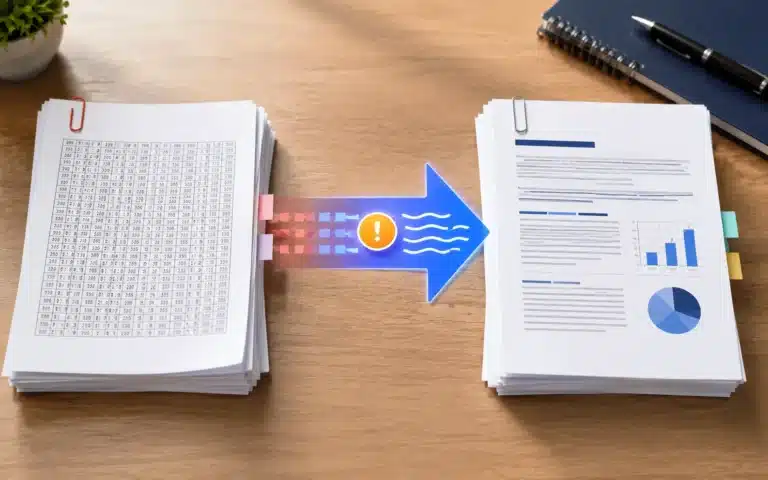
The easy way to shrink a PDF is to photograph it: render every page to an image, compress the image, and rebuild the file. It always produces a smaller number, which is why so many tools do it to every file they are given.
It also destroys the document. Text stops being text, so it cannot be selected, searched, copied, or read aloud by assistive software. Every letter picks up JPEG ringing. And on a text document the result is frequently larger than the original, because a page stored as characters is far more compact than the same page stored as pixels.
Three passes, least destructive first
This tool only escalates as far as your file actually requires.
| Pass | What it does | What it costs |
|---|---|---|
| 1. Structural | Removes XMP metadata and private application data, discards objects nothing references any more, and rewrites the file with object streams and a compressed cross-reference table | Nothing — completely lossless |
| 2. Images | Finds image objects carrying more pixels than their page can show, downsamples those, and re-encodes them | Only image detail. Text, vectors, links and bookmarks are untouched |
| 3. Rasterisation | Re-renders whole pages as images | Everything above — so it runs only on scans, or when you have named a size nothing else can reach |
The second pass is where nearly all the saving comes from on a real document, and it is the one most tools skip. A report with three photographs in it is large because of the photographs; shrinking those and leaving the text alone gives you most of the reduction and none of the damage.
What that means in practice
Measured on three documents, with the proportion of selectable text surviving:
| Document | Result | Method | Text kept |
|---|---|---|---|
| Born-digital invoice | Unchanged — reported as already optimal | — | 100% |
| Report with photographs | 71% smaller | Images only | 100% |
| Scanned document, Balanced | 73% smaller | Images only | n/a — a scan has none |
| Scanned document, Strong | 89% smaller | Images only | n/a |
The first row matters as much as the others. A text-only PDF is already about as small as it can be, and the honest answer is to say so and leave the file alone — not to rasterise it into something worse and call that compression.
Target size, and what happens when it cannot be met
Naming a size is the mode most people want, because the requirement usually comes from outside: a portal that rejects anything over 2 MB, an email cap, a form that specifies 200 KB.
The tool works down a ladder of settings, quality first, and stops at the first one that fits. It also predicts — image size scales with the square of resolution, so rather than grinding through every rung on a file that is far too large, it estimates which rung will land near your target and jumps there, then continues downward if the estimate was optimistic.
When the target genuinely cannot be reached without making the document unreadable, it stops at the smallest legible result and tells you. There is a floor below which rasterised body text turns to grey mush, and returning a file that hits your number but cannot be read is not a useful answer.
The three quality levels
High never rasterises, whatever the document. It will do the structural pass and recompress oversized images, and if neither wins anything it leaves your file alone. Use it when fidelity matters more than the saving.
Balanced is the everyday choice and where most documents land. On the scan above it found 73% without touching a single page render.
Strong accepts visible softening in exchange for the smallest file. Right for a scan going into an upload form; wrong for anything being printed.
Running in your browser
Your PDF is read from disk into the page’s memory, compressed there, and written back out. It is never transmitted. That means no upload wait, no server-imposed size cap, and no copy of a document you may well have chosen to compress precisely because it is confidential.
The practical limit is your device’s memory. A very long scanned document on an older phone may struggle where a laptop will not — if a compression stalls, split the file and compress the parts.
Frequently Asked Questions
Will my text still be selectable after compressing?
On a text document, yes. The tool recompresses images and leaves text, vectors, links and bookmarks untouched — measured at 100% of selectable text retained on a report that came out 71% smaller. Whole-page rasterisation, which destroys text, runs only on scans or when you have named a size nothing gentler can reach.
It says my PDF is already optimal. Is that an error?
No, it is a real answer. A text-only PDF is already close to as small as it can be, and every setting produced a larger file — so your original was kept. If you saw it on High, try Balanced: High declines any saving under 12%, and Balanced often finds a large one.
Can I compress to an exact size like 200 KB?
Yes — choose “Reach a target size” and name it. The tool works down a ladder of settings, quality first, and stops at the first that fits. If your target cannot be met without making the document unreadable it stops at the smallest legible result and tells you rather than returning something useless.
Which quality setting should I use?
Balanced for almost everything. High when fidelity matters more than size — it never rasterises. Strong when the file has to be small and you accept visible softening, which suits a scan going into an upload form but not something you intend to print.
How large a PDF can I compress?
No, because there is no upload. Compression runs in your browser, so the only constraint is your device’s memory. If a very large scanned document stalls, split it and compress the parts separately.
Is my PDF uploaded to a server?
No. It is read from your disk into the page’s memory, compressed there, and written straight back out. Nothing is transmitted — which matters given that people usually compress documents they would rather not hand to a third party.
Why did another compressor make my file smaller than this one?
Almost certainly because it rasterised the whole document. That always produces a smaller number and always destroys the text — no selecting, no searching, no screen-reader access, and JPEG artefacts around every letter. Compare the two outputs and try selecting a sentence.
Why is my scanned PDF still large after compressing?
A scan is a photograph of every page, and photographs do not compress the way text does. Strong reached 89% on our test scan; if that is still too big, the pages are probably scanned at a higher resolution than you need. Compressing again will not help — rescanning at 200-300 DPI will.