Screenshot to PDF Converter – Capture, Crop & Convert to PDF Instantly

📸 Screenshot to PDF Converter

Capture screenshots of any webpage,upload screenshot, full-width preview, crop, and convert to high-quality PDF or Image using this Screenshot to PDF Converter .

📢 Ad Space — Insert AdSense Code
📌 How to capture any website:
1️⃣ Enter URL above and click "Open Website in New Tab". On the opened website, press Ctrl+Shift+S (or click browser's screenshot button).
2️⃣ Or use browser's built-in screenshot tool to capture the page. Then upload the screenshot below using "Upload Image" button.
3️⃣After upload screenshot user can crop the screenshot image and press "Convert & Download" button.
4️⃣User can press "Capture This Page" button to capture the current page with uploaded screenshot also.
💡 Tip: Most browsers have built-in screenshot tools (Chrome: F12 → More tools → Screenshot)
📷 Full Width Preview (Scroll Vertically)
Screenshot preview
💡 Tip: Open any website in new tab, take screenshot, then upload here. Enable crop to select area.
Sharpness + Contrast
✨ Ready: Open any website, take screenshot, upload here, crop, and convert to PDF/Image.

📘 How to Use – Capture Any Website

1️⃣ Enter URL
Paste any website URL and click "Open Website in New Tab"
2️⃣ Take Screenshot
Use browser's screenshot tool or press Print Screen key
3️⃣ Upload Image
Click "Upload Image" and select your screenshot
4️⃣ Crop & Convert
Enable crop, select area, convert to PDF/Image

📸 Browser Screenshot Methods:

1 Chrome/Edge: Right-click → "Take Screenshot" or F12 → More tools → Capture screenshot

2 Firefox: Right-click → "Take Screenshot"

3 Any Browser: Press Print Screen (PrtScn) key, paste in image editor, save as image

4 Mac: Press Cmd+Shift+4 to capture area, or Cmd+Shift+3 for full screen

✅ After capturing, save the image and upload it using the "Upload Image" button above.

📢 Advertisement Space — Monetize with AdSense

Screenshot to PDF Converter – Capture, Crop & Convert to PDF Instantly

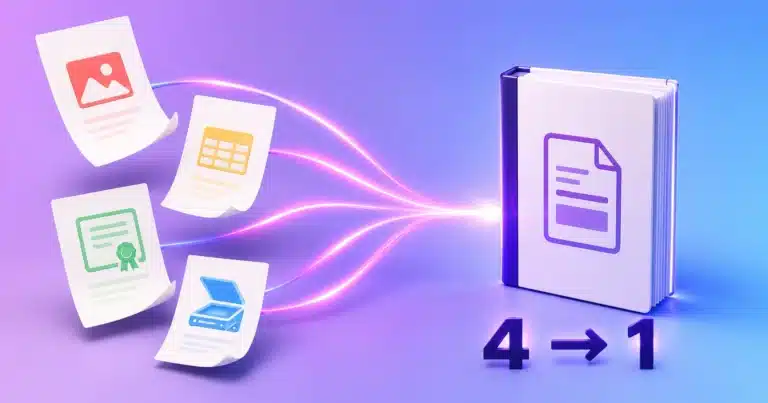
Convert your screenshots into clean, professional PDF documents with complete control. Our Screenshot to PDF Converter allows you to capture website content, crop unwanted areas, and convert the final result into a high-quality PDF—all in one seamless workflow.

Whether you’re saving important web content or creating polished documents, this tool ensures precision, speed, and simplicity.

🚀 Capture → Crop → Convert → Download

This tool is designed to give you full control before conversion.

Instead of converting raw screenshots, you can first crop and refine your image, ensuring that only the relevant content appears in your final PDF.

✂️ Crop Before Convert – Clean & Professional Output

One of the most powerful features of this tool is the built-in crop option.

Why cropping matters:

  • Remove unwanted areas (ads, headers, sidebars)
  • Focus only on important content
  • Create clean and distraction-free PDFs
  • Improve readability and presentation

How it works:

After uploading your screenshot, simply:

  • Select the area you want to keep
  • Adjust the crop frame
  • Preview the result
  • Then convert to PDF

👉 This ensures your final document looks professional and well-structured.

🌐 How to Capture Any Website (Step-by-Step Guide)

Follow this simple process to capture and convert any webpage:

1️⃣ Enter Website URL

Paste the website link and click “Open Website in New Tab”

2️⃣ Capture Screenshot

On the opened page:

  • Press Ctrl + Shift + S (if supported)
  • Or use your browser’s screenshot tool

3️⃣ Use Built-in Screenshot Tool

Most browsers support this feature:

  • Chrome: F12 → More tools → Screenshot
  • Capture full page or selected area

4️⃣ Upload Screenshot

Upload your image using the “Upload Image” button

5️⃣ Crop Image (Optional but Recommended ✂️)

  • Adjust and remove unwanted parts
  • Focus on key content

6️⃣ Convert to PDF

Click Convert to PDF and download instantly

💡 Pro Tip

Use full-page screenshots + crop tool together to create perfectly formatted PDFs without unnecessary sections.

✨ Key Features

📸 Flexible Screenshot Capture

Capture full-page or selected screen content from any website.

✂️ Smart Crop Tool

Edit and refine your screenshot before conversion for a cleaner PDF.

📄 High-Quality PDF Output

Maintain sharpness, clarity, and layout in the final document.

⚡ Fast Processing

Instant conversion with optimized performance.

🔒 Secure & Private

Your files are never stored or shared.

📱 Fully Responsive

Works seamlessly across mobile, tablet, and desktop devices.

📂 Multiple Image Support

Combine multiple cropped screenshots into a single PDF.

🎯 Who Should Use Screenshot to PDF Converter?

  • 📚 Students saving clean study materials
  • 💼 Professionals creating polished documents
  • 📰 Researchers capturing important content
  • 🛒 Users saving product pages without clutter
  • 👨‍💻 Designers documenting UI cleanly

🔗 Boost Productivity with Related Tools

  • JPG to PDF Converter – Convert images to PDF
  • PDF Merge Tool – Combine multiple PDFs
  • Compress PDF Tool – Reduce file size
  • OCR PDF Tool – Extract text from images
  • PDF to JPG Converter – Convert back to images

👉 Internal linking improves SEO and user engagement.

🔐 Privacy First

This screenshot to PDF converter online ensures complete privacy. Your files are processed securely and are not stored on any server.

💼 Why This Tool Stands Out

  • Crop before conversion (rare & valuable feature)
  • Clean and modern interface
  • Fast and reliable performance
  • High-quality output
  • No installation required
  • Free and easy to use

✅ Final Thoughts

If you want a professional, clutter-free PDF from your screenshots, this tool gives you everything—capture, crop, and convert in one place.

Start using this free Screenshot to PDF Converter today and create perfectly formatted PDFs with ease.

External Resources

📘 About PDF Format (Adobe – Authority Site)

👉  Learn more about PDF standards from Adobe’s official guide.

🧠 Screenshot & Web APIs (MDN – Trusted Developer Source)

👉  Modern browsers support advanced screenshot features using web technologies explained on MDN.

🌐 Image Formats Guide (MDN)


👉  Understand different image formats like JPG and PNG from MDN documentation.

🔐 Privacy Best Practices (Google Safety)

👉  Follow online safety practices recommended by Google Safety.

🔹 Screenshot to PDF Converter – FAQs

1. What is a Screenshot to PDF Converter?

A Screenshot to PDF Converter is an online tool that allows you to convert screenshots or captured images into PDF files quickly. It helps you organize and share visual content in a professional document format.

2. How do I convert a screenshot to PDF?

You can upload your screenshot, optionally crop it to remove unwanted areas, and click the Convert to PDF button. The tool processes your image and provides an instant downloadable PDF.

3. Can I crop my screenshot before converting to PDF?

Yes, this tool includes a built-in crop feature. You can select and adjust the area you want to keep, ensuring your final PDF is clean, focused, and professional.

4. Why should I crop screenshots before converting to PDF?

Cropping helps remove unnecessary elements like ads, headers, or sidebars. This improves readability and ensures your PDF contains only relevant content.

5. How can I capture a screenshot of a website?

You can open the website in a new tab and use your browser’s screenshot tool or press Ctrl + Shift + S (if supported). Most browsers also offer full-page screenshot options.

6. Can I capture a full webpage screenshot?

Yes, many modern browsers allow full-page (scrolling) screenshots. You can capture the entire webpage and then upload it to convert into a PDF.

7. Is this Screenshot to PDF converter free?

Yes, this tool is completely free to use. You can convert screenshots to PDF without any hidden charges or subscriptions.

8. Will the quality of my screenshot be affected?

No, the tool preserves the original image quality. Your PDF will maintain clarity, sharpness, and layout.

9. Is my data safe when using this tool?

Yes, your files are processed securely. This screenshot to PDF converter does not store or share your data, ensuring full privacy.

10. Can I upload multiple screenshots?

Yes, you can upload multiple screenshots and combine them into a single PDF document.

11. Do I need to install any software?

No, this is a browser-based tool. You can use it online without downloading or installing anything.

12. Can I use this tool on mobile devices?

Yes, the tool is fully responsive and works smoothly on smartphones, tablets, and desktops.

13. What file formats are supported?

The tool supports common image formats like JPG, PNG, and JPEG for conversion into PDF.

14. How long does it take to convert screenshots to PDF?

The conversion process is very fast and usually takes just a few seconds, depending on file size and number of images.

15. Why should I use a Screenshot to PDF converter?

It helps you save, organize, and share web content or images in a structured and professional format, making it ideal for work, study, and documentation.

Scroll to Top