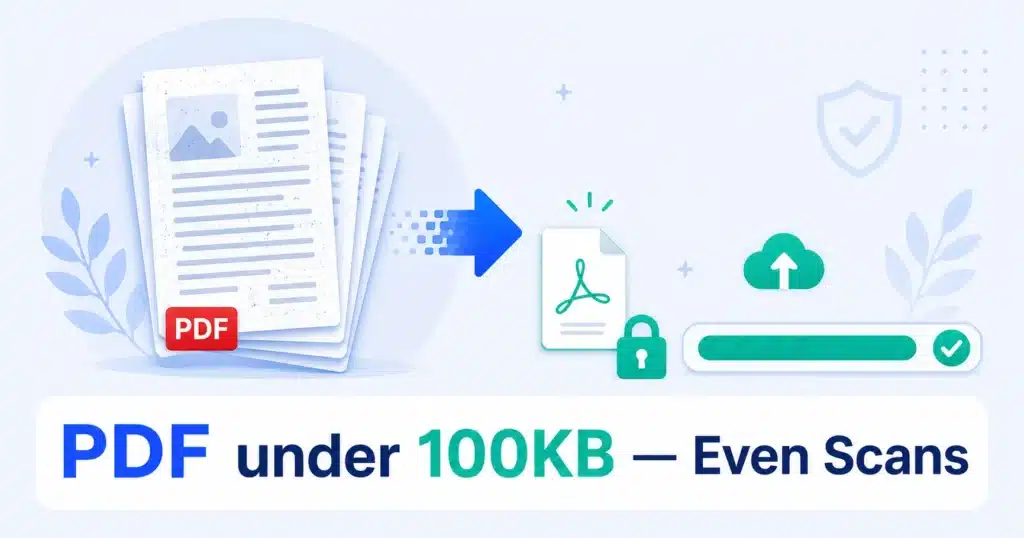
100KB is the strictest limit you’ll meet on any upload form — common on government portals and KYC systems, and brutal for scanned documents. This guide covers the quick method that works for most PDFs, plus the rebuild trick for stubborn scans that refuse to shrink.
Quick answer: run your file through the free AMTake PDF Compressor at a strong compression level. Text-based PDFs (exported from Word) get under 100KB easily; for scans, use the rebuild method in section 3. Everything runs in your browser — no upload, no watermark, no sign-up. If your limit is 200KB or more, see the 200KB guide — you’ll keep more quality.
1First, know what kind of PDF you have
This determines everything at 100KB:
| PDF type | How to tell | Under 100KB? |
|---|---|---|
| Text-based | You can select the text with your cursor | Easy — even 10+ pages compress well |
| Scanned / photo | Text can’t be selected; each page is an image | Possible — 1–3 pages with the rebuild trick |
| Mixed / designed | Brochures, resumes with photos & graphics | Usually — after strong image compression |
2The quick method (text-based & mixed PDFs)
- Open the compressor Drop your file into the PDF Compressor. Processing is local — sensitive documents never leave your device.
- Use strong compression At 100KB, start from the strongest setting and step back only if text or photos look rough.
- Trim what you don’t need Still over? Remove non-essential pages with Delete PDF Pages — a cover page or blank scan can be half the file.
3The rebuild trick (stubborn scanned PDFs)
When a scan won’t go under 100KB by compression alone, take control of the images yourself:
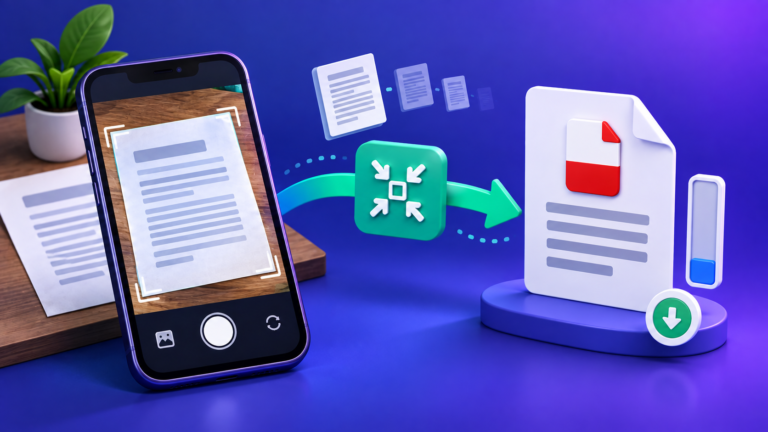
- Get the pages as images Use PDF to JPG to export each page, or use your original scan photos directly.
- Compress each image hard In the Image Compressor, take each page down to 30–60KB. Documents stay readable at sizes that would ruin a photo.
- Rebuild the PDF Combine the compressed images with Image to PDF. A 2-page scan lands at 60–120KB — checking the final size before you build it.
Readability is the real requirement. A 95KB document a reviewer can’t read will be rejected anyway. If it’s no longer legible at 100KB, upload fewer pages (if allowed, split the PDF) or re-scan in grayscale at 150 DPI — grayscale scans are 3–4× smaller than colour at the same clarity.
4Making a resume PDF under 100KB
Resumes are the most common 100KB victim. Three rules:
- Export, don’t scan. Use Word/Google Docs “Download as PDF” — a text-based resume is 30–80KB naturally. Never print-and-scan a resume.
- Compress the headshot before inserting it. One full-resolution photo can add 2MB. Take it to ~30KB with the Image Compressor first.
- Building from scratch? The free Resume Builder exports clean, lightweight PDFs with 20 templates — no watermark, no sign-up.
5Grayscale: the single biggest win at 100KB
If you take one thing from this guide, take this: a colour scan carries three channels of data; a grayscale scan carries one. For a black-ink document on white paper, colour adds nothing a reviewer needs — but it triples the file size. Re-scanning (or re-exporting) a page in grayscale is often the difference between 260KB and 90KB on its own, before you compress anything.
- Scanning fresh? Set your scanner or scan app to grayscale, 150–200 DPI. That resolution is sharp for text and tiny in size.
- Already have a colour scan? Convert the pages to grayscale before compressing — the Image Compressor step in the rebuild trick above handles this while you shrink each page.
- Colour genuinely required (a signature in blue ink, an official stamp)? Keep colour only on the page that needs it and use grayscale for the rest, then combine.
6Frequently Asked Questions
How do I compress a PDF to 100KB without losing quality?
For text-based PDFs, strong compression is visually lossless. For scans, some quality loss is unavoidable at 100KB — the rebuild trick keeps the most readability because you control each page’s compression individually.
Why is my 1-page scanned PDF 3MB?
Phone scans are often 300+ DPI colour photos. At document sizes, that’s 10× more data than needed. Compress the page image to 50–80KB and rebuild — one page fits under 100KB comfortably.
Can a multi-page PDF fit under 100KB?
Text-based: yes, easily — even 20 pages. Scanned: realistically 1–3 pages. Beyond that, split the file or ask whether the portal accepts a larger size.
What’s the best format to scan documents in?
Grayscale, 150–200 DPI, JPG. Skip colour unless the form demands it — colour triples the size and adds nothing for text documents.
Do these tools have limits or watermarks?
No watermarks, no accounts, no daily caps. All processing is local to your browser, on desktop or phone.
Strict limit, sensitive documents, zero uploads — handled.