Two people open the same text-to-speech page. One hears a warm, almost human narrator. The other hears a flat robot from 2009. Same website, same text, same day. Nothing is wrong with either of them — and once you understand why, you can usually fix the robot in about ninety seconds. This guide explains where browser voices actually come from, how to get better ones, what speed to listen at, and the honest answer to the most-asked question of all: why you cannot download the audio as an MP3.
Quick answer: paste your text into the free Text to Speech reader, then open the Voice dropdown and pick a voice whose name starts with Google (Chrome/Android) or Microsoft … Online (Natural) (Edge). Those are the neural voices; everything else in the list is likely to be the old built-in synthesiser. Then set Speed to about 1.1× and choose the Narrator or Newsreader tone.
1The voices are your device’s, not the website’s
This is the fact that explains almost everything else on this page.
Browser text to speech uses the Web Speech API‘s synthesis half. A web page hands over a string of text and a few settings; the actual speaking is done by the voice engine installed on your computer or phone. The website has no voices of its own and cannot ship you better ones.
So the quality you get depends on your operating system, your browser, and which voice packs you happen to have installed:
| Your setup | What you typically get | Quality |
|---|---|---|
| Chrome, any OS, online | Google’s network voices (named “Google UK English Female” etc.) | Very good |
| Edge on Windows | “Microsoft … Online (Natural)” neural voices | Excellent — the best widely available |
| Windows, non-Edge, offline voices | Microsoft David / Zira / Hazel | Dated but clear |
| macOS & iOS Safari | Apple system voices; “Enhanced”/”Premium” if downloaded | Good, excellent if you download the premium set |
| Android Chrome | Google Speech Services voices | Good |
| Linux | Often only eSpeak | Poor — this is the classic “robot” case |
To get better voices, install them at OS level — it takes two minutes and improves every app on the machine.
Windows: Settings → Time & Language → Speech → Manage voices → Add voices.
macOS: System Settings → Accessibility → Spoken Content → System Voice → Manage Voices, and pick an Enhanced or Premium variant.
Android: Settings → Accessibility → Text-to-speech output → Google Speech Services → Install voice data.
iPhone: Settings → Accessibility → Spoken Content → Voices.
2What “tone” really means — there are only three dials
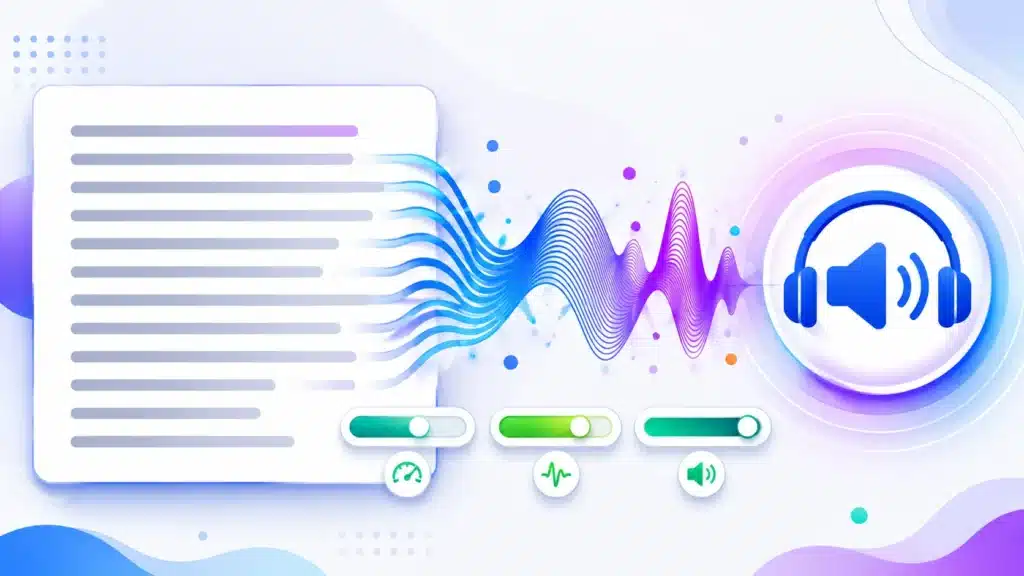
Plenty of free tools advertise a menu of “AI voice styles”. Here is the unglamorous truth about every browser-based reader, including ours: the Web Speech API exposes exactly three parameters. Rate, pitch and volume. That is the entire control surface.
So a “tone” is an honest pairing of rate and pitch — not a different voice model. That is still a real and useful difference (it is the gap between a newsreader and a bedtime story), but you should know what you are buying, and you should be suspicious of any free browser tool claiming forty emotional styles.
| Tone | Rate | Pitch | Use it for |
|---|---|---|---|
| Natural | 1.0 | 1.0 | The neutral default — start here |
| Narrator | 0.9 | 0.8 | Audiobooks, long articles, bedtime reading |
| Newsreader | 1.1 | 1.0 | Bulletins, scripts, anything brisk and factual |
| Calm | 0.8 | 1.1 | Meditation scripts, slow explanation |
| Cheerful | 1.2 | 1.4 | Adverts, social clips, children’s content |
| Deep | 0.9 | 0.5 | Trailers, dramatic voice-over |
| Bright | 1.1 | 1.7 | Light, energetic, slightly cartoonish |
| Slow & clear | 0.6 | 1.0 | Language learners, dictation practice, accessibility |
Two things worth knowing about pitch. Below about 0.5 most voices start to sound processed rather than deep, because you are stretching a model that was not trained to go there. And Google’s network voices tend to ignore pitch changes more than Microsoft’s do — if the pitch slider seems to do nothing, that is the voice, not the slider.
3What speed should you actually listen at?
The instinct is to push the speed up until it becomes uncomfortable. The research says that costs you more than it saves once you pass a certain point.
Playback speed vs. words heard per minute (from a 150 wpm base voice)
Studies of compressed speech generally find comprehension holds up to roughly a 25% increase, softens as you approach 1.5–2×, and falls measurably at 2× and beyond — most sharply for unfamiliar or technical material. Speed listening is also trainable: regular listeners tolerate rates that would lose a newcomer.
Practical rules that come out of that:
- Familiar material, revision, news: 1.25× to 1.5×. You already know the vocabulary, so the extra speed is nearly free.
- New or technical material: stay at 1.0×. Comprehension losses at high speed land almost entirely on content you do not already understand.
- Proofreading your own writing: 1.0× or slower. The whole point is to hear each word, and speed defeats it.
- Language learning: 0.6–0.8× with the Slow & clear tone, and match the voice language to the text.
4Why you cannot download the audio as an MP3
This is the most searched question about every browser TTS tool, and most sites dodge it. The straight answer:
The Web Speech API sends audio straight to your speakers and never exposes it as a file. There is no audio stream a web page can capture, so no browser-based reader can honestly offer “download MP3” using it. Any free tool that does offer a download is either sending your text to a paid cloud API (with quotas, a sign-up, or a watermark waiting for you), or handing you a file recorded some other way.
If you genuinely need a file, these are the real options, in order of least hassle:
- Record the system audio while it plays. Our Screen Recorder can capture tab audio; extract the sound afterwards with the Video to MP3 Converter. Quality is exactly what you heard.
- Use your OS’s own accessibility export where one exists — macOS can save spoken text to an audio file from the Services menu.
- Use a paid cloud TTS service if you need commercial-quality narration with licensing you can rely on. For a YouTube voice-over that is the correct answer, and it is not what a free browser tool is for.
5Five real uses that are better than “listening to articles”
- Proofreading by ear. Your eyes read what you meant to write; your ears only hear what is on the page. Dropped words, doubled words, and sentences that lost their verb halfway through are almost impossible to miss when read aloud. Do this before sending anything that matters.
- Checking a script’s real length. Paste the script, listen at the speed you will actually present at, and time it. Then confirm with the Words to Minutes calculator — if the two disagree, trust the listening.
- Revision while your eyes are busy. Notes read aloud during a commute or a walk. Set the tone to Slow & clear and the speed to 0.9× so definitions land.
- Checking a dictated draft. Anything produced with voice typing fails in a specific way — grammatically fine sentences that say the wrong thing. Hearing it back catches those instantly.
- Accessibility and reading fatigue. For dyslexic readers, for anyone with eye strain, and for long PDFs, a read-aloud pass is not a novelty — it is the difference between finishing the document and abandoning it. Pull the text out first with the PDF to Text Converter.
6Troubleshooting: when nothing plays, or it stops halfway
| Symptom | Cause | Fix |
|---|---|---|
| Press Play, total silence | Chrome’s paused state survives a stop and every later request queues silently | Press Stop, then Play again; if it persists, reload the tab |
| Voice list is empty or says “Loading voices…” | Voices load asynchronously and are often not ready on a cold start, especially on Android | Wait a second and re-open the dropdown, or press Play once — the interaction usually populates it |
| Stops after roughly 15 seconds | A long-standing Chrome behaviour: synthesis of a long utterance simply dies | Good tools split text into short chunks and nudge the engine to stay alive. If your tool does not, break the text into paragraphs yourself |
| Reads Hindi text in an English accent | An English voice is selected and is spelling out the characters phonetically | Set the language first, then pick a voice that matches it |
| No sound on iPhone | iOS requires a user gesture before any audio, and the silent switch mutes it | Press Play directly (not via an auto-start) and check the physical mute switch |
| Pitch slider does nothing | Some network voices ignore pitch | Change the voice, or use rate for the effect instead |
7Getting a genuinely natural read: six writing-side fixes
Half of what makes synthetic speech sound robotic is not the voice — it is the text you fed it. Speech engines take their pauses from punctuation, so punctuation is your prosody control.
- Use full stops, not commas, between ideas. A long comma-spliced sentence is read as one breathless run.
- Break paragraphs. A blank line produces a longer pause than any punctuation mark.
- Expand abbreviations. “Dr.” may be read as “doctor” or as “dee arr” depending on the voice. “approx.” is a coin toss. Write it out.
- Watch numbers and dates. “1/5” can come out as “one fifth”, “one slash five”, or “the first of May”. Write what you want heard.
- Spell tricky names phonetically in the pasted copy. You are not publishing this text — only listening to it — so “Rajesh Choudhury” can become “Rajesh Chowdhry” if that is what makes the voice say it right.
- Strip the furniture. Copied web text drags in menus, cookie notices and “Share on X”. Clean it in the Online Notepad first — the reader will faithfully narrate every bit of it otherwise.
8Frequently asked questions
Is the text I paste sent anywhere?
Not to us. The reader runs entirely in your browser using your device’s installed voices, so there is no upload and no character limit imposed by a server. Note that if you select one of Google’s or Microsoft’s network voices, your browser fetches the audio from that vendor — the same way it would in any other app using those voices.
Why does the same tool sound different on my laptop and my phone?
Because the voices are installed on the device, not on the website. Your phone and laptop simply have different ones. Install better voices at OS level and every tool on that device improves at once — see the setup box in section 1.
Is there a character or word limit?
No hard limit in our tool — you can paste a whole chapter. Very long text is read in short chunks behind the scenes because Chrome stops synthesising long utterances, but that is invisible to you: playback, pause and the progress bar all treat it as one continuous read.
Can I start reading from the middle?
Yes. Drag the “Start from” slider, or click into the text at the point you want and press Play. Both funnel through the same mechanism, so a reading resumed halfway still tracks position correctly for the rest of the document.
Which languages are supported?
Whatever your device has voices for — commonly English variants, Hindi, Spanish, French, German, Arabic, Chinese, Japanese and dozens more. If a language shows no voices, install its voice pack at OS level and it will appear. Choosing the language first is what stops an English voice from mangling Hindi text.
Can I use the audio in a YouTube video or a commercial project?
Check the licence of the specific voice you used — it belongs to Microsoft, Apple or Google, not to us, and terms differ between them and between free and premium voices. For commercial narration, a paid TTS service with an explicit commercial licence is the safe route.
Does it work offline?
Partly. Offline system voices (Microsoft David, Apple’s compact voices) work without a connection. The high-quality network voices — the “Google” and “Online (Natural)” ones — need one, because the audio is generated on a server.