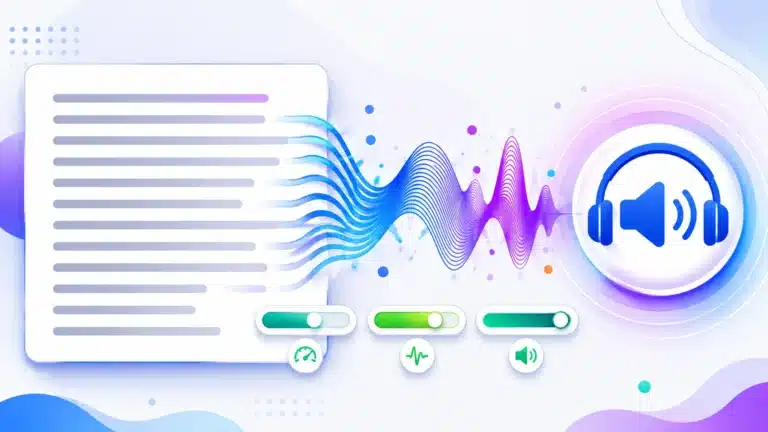
From pasted text to a voice reading it back
1. Paste as much as you like
A paragraph, an article, a whole chapter. There is no character limit, because long text is split at sentence boundaries and queued rather than handed to the engine in one piece — which is exactly what stops browser speech falling silent partway through. The demo line clears itself the moment you tap into the box.
2. Choose the language, then the voice
Pick a language and the voice list reorders to put it first. An honest limit applies here and it is worth stating: we cannot install voices. The browser exposes only what your operating system carries, which is why the same page offers a different list on your laptop and your phone.
3. Hear a voice before committing a chapter to it
Press Hear this voice for a one-line sample at your current speed and pitch. Voices from the same vendor differ more than their names suggest, and finding that out after starting a forty-minute article is a waste of forty minutes.
4. Pick a tone, or set the dials yourself
Eight tones — Natural, Narrator, Newsreader, Calm, Cheerful, Deep, Bright, Slow & clear — each a preset of speed and pitch. Or move speed, pitch and volume directly. Those three are the only dials browser speech has, which is covered below.
5. Press Play and follow the words
A reading pane opens underneath and highlights each word as the voice reaches it, greying out what has already been read and scrolling to keep the current line in view. Beside it, the time remaining at your chosen speed.
6. Click any word to start from there
The most direct way to skip. Click a word in the reading pane and playback restarts from it. The Start-from slider still works if you prefer it, and Previous and Next move a sentence at a time.
7. Pause, Stop, Reset — three different things
Pause holds your place and resumes from it. Stop ends the read and keeps your position, so Play continues from there. Reset returns everything to the beginning with the default settings.
Whether your text leaves your device depends on the voice you pick
This page used to carry a single line saying the tool runs entirely in your browser with no upload. That was true for some visitors and false for others, so it has been replaced by a line that reads the voice you have actually selected.
The Web Speech API reports, for each voice, whether it runs locally. Local voices are installed on your device by the operating system: Microsoft David on Windows, Samantha on macOS, the voices bundled with Android. Your text goes to the speech engine on the machine in front of you, nothing is transmitted, and it works with the connection off.
Network voices are the higher-quality ones served by the platform’s cloud — most of Google’s, and the premium voices on some systems. They need a connection, and your text is sent to the voice provider to be spoken. That is not a criticism of them; they usually sound considerably better. It is simply a fact that ought to be on screen before you paste something sensitive.
Every voice in the dropdown that sends your text is labelled with the words “network voice, sends your text”, and the line beneath the controls changes as you switch between them. What is constant either way: nothing reaches our servers, and we store nothing. The choice is between your device and the platform’s voice service, and it is yours to make with the information in front of you.
Why the reader breaks your text into pieces
Handed a very long string, browser speech engines routinely stop partway through with no error at all. Chrome in particular tends to fall silent after roughly fifteen seconds of continuous speech. There is no event, no exception, nothing to catch — the voice simply stops.
So the text is split at sentence boundaries into short passages and queued in order. You hear one continuous reading; the engine only ever sees a manageable piece. That is what makes unlimited length possible, and it is also what makes the position tracking work, because each piece knows where it sits in the whole text.
The splitting is done on sentence terminators from several scripts, not just the full stop — the danda for Hindi and Bangla, the ideographic stop for Chinese and Japanese, the Urdu full stop — so a passage in those languages is broken in sensible places rather than at an arbitrary character count.
How the reading view knows which word is being spoken
The API fires a boundary event as it reaches each word, carrying the character offset it has reached. Added to the offset of the current passage, that gives an exact position in your original text.
The tool has always computed this. Until now it spent it on a six-pixel progress bar and a caret move inside a text box nobody was focused on — which is to say, the most precise signal available was effectively invisible. It now drives the highlight.
Two things worth knowing about it. Support for boundary events is good in Chrome and Edge, patchier elsewhere; where a browser does not fire them, the highlight advances passage by passage instead of word by word, which is less pretty and still useful. And the pane is built once per read and then only changes two class names per word, so a fifty-thousand-word article does not re-render itself sixty times a minute.
What a “tone” actually is here, and what it is not
Worth being straight about, because plenty of sites are not.
Browser speech synthesis exposes exactly three dials: rate, pitch and volume. There is no emotion parameter, no style token, no way to ask a voice to sound sad or excited or urgent. The eight tones on this page are combinations of speed and pitch, and they carry a surprising amount of the difference between a bedtime story and a news bulletin — but they are not emotional synthesis and it would be dishonest to call them that.
Sites promising “AI emotional voices” free in a browser are either calling a paid cloud API behind the scenes or overstating what they do. Genuine expressive synthesis needs a commercial voice API, and it is not free.
How the male and female labels are worked out
The Web Speech API does not report a voice’s gender. SpeechSynthesisVoice carries a name, a language tag, whether it is local, and a URI — nothing else. The old gender attribute was dropped from the specification.
So the labels come from the voice’s name, which in practice is enough, because every major platform names its voices after a person or states the gender outright. Three passes run in order: an explicit word in the name or URI, which catches Google’s “UK English Male” and Android’s internal naming; then a lookup of the voices Microsoft, Apple and Google actually ship, Indian-language sets included — Heera, Ravi, Kalpana, Hemant, Bashkar, Neerja, Lekha, Veena; and finally Google’s unlabelled voices, which are female throughout the range.
Anything still unrecognised is left unlabelled rather than guessed. A voice with no marking is one we could not identify honestly, not one with no gender.
Why choosing a language narrows the ordering, not the list
Picking English (United Kingdom) sorts the British voices to the top and leaves the rest below, rather than hiding them. That is deliberate: an earlier version returned exact-locale matches only when any existed, which quietly threw away usable voices — choosing English (India) on a machine with no Indian English voice showed you nothing, when several other English voices would have read the text perfectly well.
If your device has no voice at all for the language you chose, the tool says so, lists every voice instead, and still asks the platform to read in that language when you press Play. Android in particular frequently manages languages that its voice list does not advertise.
The language tags follow RFC 5646, published in September 2009 as BCP 47 and the same standard behind every lang attribute on the web — which is why the menu distinguishes pt-BR from pt-PT and bn-IN from bn-BD.
Deliberately mismatching a voice and a language is allowed
Pairing an English voice with Hindi text is a real thing people want. Romanised Hindi — “kaise ho aap” — reads perfectly well in an English voice, and some people simply prefer a particular voice regardless of the text.
So if you choose a voice by hand, that choice wins and the tool does not second-guess it. What it still guards against is the accidental mismatch: the language menu falling back to listing every voice because your device has none for the language you picked, and whatever happened to sit at the top being used by default. That is not a decision, and honouring it would read Bangla in an English accent without anyone asking for it.
Reading along, and the controls that make it usable
- Time remaining is estimated from the words still ahead and your chosen speed, using roughly 165 words a minute at 1× and scaling directly with the rate slider. It is an estimate, not a countdown to the second.
- Previous and Next sentence move a sentence at a time, the way a podcast player skips a chapter. Previous restarts the current sentence first, then steps back — which is what people expect from a media control.
- Space plays or pauses, Escape stops, and the arrow keys skip a sentence. All are ignored while you are typing in the text box, so a spacebar meant for your draft never triggers playback.
What this tool cannot do, said plainly
It cannot save an MP3. The Web Speech API sends audio to your speakers and gives the page no access to the waveform. There is nothing to capture and nothing to encode. Any browser page offering a free download of synthesised audio is using a paid cloud API on a server, not the browser’s own engine.
It cannot install voices. The list is whatever your operating system carries. Adding voices is done in your system settings — Windows Settings, macOS Accessibility, Android Text-to-speech output — and once installed they appear here on the next reload.
It cannot make a voice sound emotional, for the reason given above.
It cannot pronounce every name correctly. Synthesis applies the pronunciation rules of the voice’s language; an unusual name, an acronym or a foreign word will sometimes come out wrong, and there is no dictionary you can correct it in. Respelling the word phonetically in the text is the practical workaround.
Browser and device support
Speech synthesis is more widely supported than recognition — Chrome, Edge, Safari and Firefox all provide it, on desktop and mobile. Current details are on Can I use — Speech Synthesis API, and the interface is documented on MDN and specified in the Web Speech API specification — which, as its own front matter records, is still a Draft Community Group Report, the current one dated 10 August 2026. A draft is not a promise of consistency, and the differences below follow from that.
What differs between them is the voice catalogue and the reliability of boundary events. Two quirks are handled here rather than left to bite: iOS Safari only permits speech that begins inside a real tap, and Chrome keeps a paused flag alive across a cancel, so a read paused on a page you left and came back to would otherwise queue silently and never play.
Who gets the most out of it
People proofreading their own writing, because hearing a sentence read back catches what re-reading it does not — a missing word, a clause that does not land. Students working through long reading lists, and anyone who absorbs more by listening than by reading. People with dyslexia or low vision, for whom this is not a convenience. Anyone learning a language, who wants to hear pronunciation in a native voice. And anyone who wants an article read aloud while their hands are busy.
Questions people ask about reading text aloud
Is there a word or character limit?
No. Paste an entire article or chapter. Long text is split at sentence boundaries and read in order, which is precisely what stops browser speech engines going silent partway through.
Can I download the audio as an MP3?
Not from browser speech, and no browser page can honestly offer it. The API plays audio to your speakers and never exposes it to the page. Sites that do offer a download are using a paid cloud service on a server.
Is my text sent anywhere?
It depends on the voice, and the page tells you which you have. A local voice keeps everything on your device. A network voice sends your text to the voice provider to be spoken. Either way nothing reaches our servers and we store nothing.
What does “network voice” next to a name mean?
That the voice is served from the platform’s cloud rather than installed on your device. Usually better quality, needs a connection, and your text is sent away to be spoken.
Can I start reading from the middle?
Three ways: click the word in the reading pane, drag the Start-from slider, or put your cursor in the text and press Play. Play always reads from where the cursor sits.
Can I skip forward while it is reading?
Yes — Next sentence, or the right arrow key. Previous sentence and the left arrow go back.
Can I read text aloud in Hindi, Bangla or Tamil?
If your device has a voice for that language. Windows, macOS and Android all ship Indian-language voices, though not always by default; they are added in your system’s speech settings and appear here on the next reload.
Can it make the voice sound happy or sad?
No, and it would be dishonest to claim otherwise. Browser speech offers rate, pitch and volume and nothing else. The tones combine speed and pitch, which carries some of the difference, but it is not emotional synthesis.
Why do some voices have no gender label?
Because the API does not report gender and the name gave no reliable signal. An unlabelled voice is one we could not identify honestly rather than one with no gender.
I chose English (United States) but I can see British and Indian voices. Why?
Choosing a language sorts it to the top rather than hiding everything else, so a usable voice is never thrown away just because its region differs.
I pasted my text and Play does nothing. Why?
Almost always the cursor: pasting leaves it at the end of the text, and Play reads from the cursor. The tool sends it back to the start after a paste for this reason. If it still does nothing, the device may be muted, or the selected voice may be registered but not actually installed — try another from the dropdown.
Does it work offline?
With a local voice, yes, once the page has loaded. With a network voice, no — it needs the connection to reach the voice service.
The voice stops partway through long text. What do I do?
It should not, because the text is chunked specifically to prevent it. If it does, press Play again — playback resumes from where it stopped rather than starting over.
What speed should I use for proofreading?
Slower than feels natural — around 0.8×. The point is to hear each word rather than to get through it, and errors hide at conversational speed.
What is the difference between Stop and Reset?
Stop ends the read and keeps your position, so Play continues from there. Reset returns to the beginning and restores the default speed, pitch and volume.
Sources
- MDN — Web Speech API, the reference for the synthesis interface used here.
- Web Speech API specification, Draft Community Group Report of 10 August 2026 — the voice attributes available, and the absence of a gender attribute.
- MDN — SpeechSynthesisUtterance: boundary event, which is what drives the word highlighting.
- Phillips A, Davis M (eds), RFC 5646 — Tags for Identifying Languages, September 2009 (BCP 47) — the standard behind the language and region codes.
- Can I use — Speech Synthesis API, for current browser support.
Tools people open next to this one
- Speech to Text — the other direction, dictation in 48 languages with spoken punctuation in each.
- Word Counter — for estimating how long a passage will take to read aloud.
- PDF to Text Converter — to get a document into a form this page can read.
- HTML to Text Converter — for stripping an article back to its words before listening.
- Online Notepad — somewhere to keep the text you are working through.
- Word Case Converter — because a voice reads ALL CAPS differently from ordinary sentence case.