Most people try voice typing once, get a wall of unpunctuated text with their name spelled three different ways, and never open it again. That is a settings problem, not a technology problem. Browser dictation in 2026 is good enough to draft an email, a WhatsApp reply, an assignment or a first draft of a blog post — but only if you set the language correctly, learn six punctuation words, and understand why it keeps stopping. This guide covers all three, plus the one thing nobody tells you about where your voice actually goes.
Quick answer: open the free Speech to Text tool in Chrome, Edge or Safari, set the language to the one you will actually speak — English (India) if you have an Indian accent, not English (US) — press the mic, and say “comma”, “full stop” and “new line” out loud as you go. That combination fixes about 80% of what makes dictation feel broken.
1Is dictation actually faster? The honest arithmetic
Yes, but not by as much as the marketing claims, and the gap depends entirely on how much editing you do afterwards.
The largest public study of typing speed — Aalto University’s 2018 dataset of 136 million keystrokes from 168,000 volunteers — put the average at 52 words per minute, with most people between 40 and 65. Conversational English runs at about 120–150 words per minute. So raw speech is roughly 2.5 to 3 times faster than raw typing.
Words per minute: what you can actually produce
Typing figures: Aalto University keystroke study (2018). Speaking rate: National Center for Voice and Speech, ~150 wpm for English conversation. The “net” figure assumes roughly a third of your time goes on correcting — measure your own baseline with the Typing Speed Test.
That clean-up third is the number that decides whether dictation is worth it for you. Two things shrink it dramatically: getting the language code right, and speaking your punctuation. Both are below.
Where dictation wins outright: long-form first drafts, replies you would otherwise put off, and any situation where your hands are busy. Where it loses: anything with numbers, code, tables, or a lot of proper nouns. A five-line email full of client names is faster typed.
2How browser dictation actually works — and where your voice goes
This matters more than any tip in this article, and almost no tool page explains it.
Browser voice typing uses the Web Speech API. The web page does not do the recognition. It hands the microphone stream to your browser, and your browser sends the audio to its own vendor’s speech service to be turned into text. Chrome uses Google’s engine, Edge uses Microsoft’s, Safari uses Apple’s. The text comes back to the page; the page never sees the audio.
Three consequences follow, and they explain most of the confusion people have with these tools:
- It needs an internet connection. Dictation that “stops working” on a train is usually just offline. The recognition is happening on a server, not on your laptop.
- Firefox cannot do it. Firefox ships no speech recognition engine, so no website can offer voice typing in it — this is not a limitation of the tool. Firefox does support the reverse direction, which is why Text to Speech works there fine.
- It is not for confidential dictation. Your audio leaves your device. Our tool stores nothing — the transcript lives in the page until you copy or download it, and never touches our servers — but we cannot make a promise about Google’s or Apple’s servers on your behalf. For a patient note, a legal statement or anything under NDA, use offline dictation software instead.
| Browser | Voice typing | Notes |
|---|---|---|
| Chrome (desktop) | ✅ Best | Continuous dictation, most reliable interim results |
| Edge (desktop) | ✅ Yes | Same engine family as Chrome; equally solid |
| Safari (Mac & iOS) | ✅ Yes | Ends sessions more aggressively on silence — normal, not a fault |
| Chrome (Android) | ✅ Yes | Restarts after every utterance internally; the tool re-arms it for you |
| Firefox | ❌ No | No built-in recognition engine on any platform |
| Any browser, offline | ❌ No | Recognition happens server-side |
3The single biggest accuracy win: pick the right language code
Speech engines are not trained on “English”. They are trained on English as spoken in a particular place. Choosing English (United States) when you speak Indian English is like asking someone to take dictation in a second language — they will manage, but they will guess wrong on exactly the words you care about: names, places, numbers spoken as “one lakh”, the rhythm of Indian English sentences.
Switching the dropdown from en-US to en-IN is a two-second change that often does more for accuracy than a better microphone.
| If you speak… | Choose | Why it matters |
|---|---|---|
| Indian English | English (India) | Recognises Indian names, place names, “lakh” and “crore” |
| Hindi, or Hindi + English mixed | हिन्दी — Hindi | English words inside a Hindi sentence are still recognised; the reverse is not true |
| Bangla | Bangla (India) or (Bangladesh) | The two differ in vocabulary and pronunciation; pick your own |
| British English | English (United Kingdom) | Spelling comes back British — “colour”, “organise” |
| Nigerian / Filipino English | The matching regional option | Distinct accent models exist and are noticeably better |
Code-mixing is fine. If you naturally speak Hinglish, choose Hindi and speak the way you speak. The engine handles embedded English words far better than an English model handles embedded Hindi ones. The tool keeps English punctuation words active alongside your chosen language for exactly this reason — “अल्पविराम” and “comma” both work while you are in Hindi mode.
4Speak your punctuation — the six words that change everything
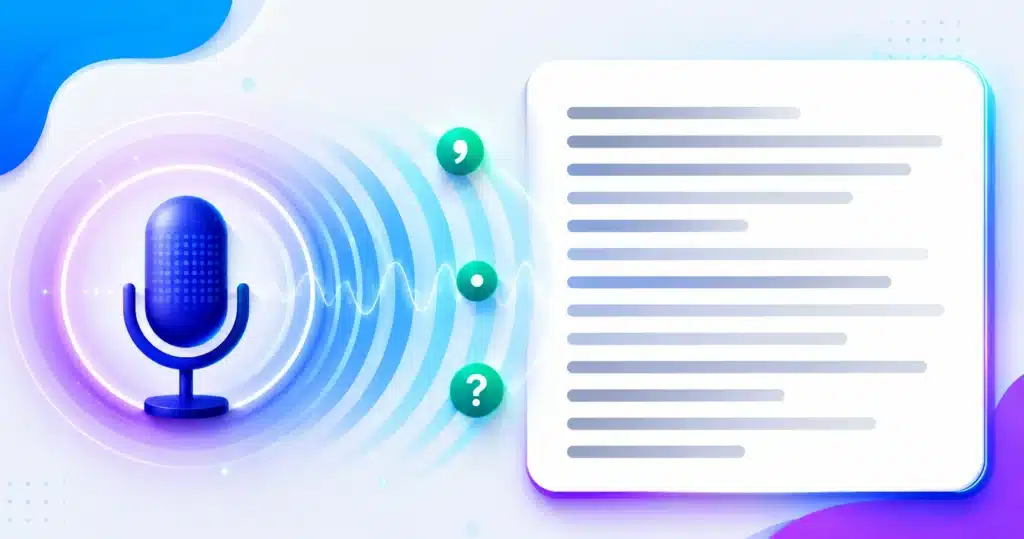
Raw dictation output has no punctuation. That is the single thing that makes transcripts feel unusable. Every serious dictation system solves it the same way: you say the mark out loud and it gets typed as a symbol.
| Say this | You get | In Hindi, say |
|---|---|---|
| “comma” | , | अल्पविराम / कॉमा |
| “full stop” or “period” | . | पूर्ण विराम → । |
| “question mark” | ? | प्रश्नवाचक चिह्न |
| “exclamation mark” | ! | विस्मयादिबोधक चिह्न |
| “new line” | line break | नई लाइन |
| “new paragraph” | blank line | नया पैराग्राफ |
| “colon” / “semicolon” | : ; | कोलन / अर्धविराम |
Two details that separate a good implementation from a lazy one, and that you should check in whatever tool you use:
- The mark should suit the script. Hindi sentences end with a danda (।), not a full stop. Urdu uses ۔ and ؟. Chinese uses full-width 。 and ,with no space before them. A tool that types an ASCII period into a Hindi paragraph is telling you it only ever supported English.
- There must be a way to turn it off. Those phrases are ordinary words too. Dictating an article about grammar, or the sentence “put a comma there”, is impossible while every “comma” becomes a symbol. Our tool has a Spoken punctuation checkbox for that; untick it and the words are typed literally.
After the first mark, the next sentence is capitalised for you — in every script that has capitals. You do not need to say “capital”.
5Why dictation keeps stopping (and when it is genuinely broken)
Speech engines are designed around utterances, not open-ended recording. Stay quiet for a second or two and the session ends. On Android and iOS it is stricter still: the platform ends the session after essentially every sentence.
A well-built tool hides this by starting a fresh session immediately — which is what you see as the mic staying red while you pause to think. What you should not see is your last sentence appearing twice. Duplicated phrases are the classic symptom of a tool that restarts the same recogniser instead of creating a new one; the phone’s speech service re-delivers phrases it has already finalised and the naive implementation writes them all.
| Symptom | What it actually is | Fix |
|---|---|---|
| Mic stays red, nothing appears | Permission granted but no audio reaching the browser | Check the system input device; on a laptop, make sure a Bluetooth headset has not grabbed the mic |
| Stops after every sentence | Normal engine behaviour, especially on phones | Nothing to fix — keep speaking, it re-arms |
| Every phrase appears twice | Tool bug, not your microphone | Reload the page; if it persists in that tool, it will persist forever |
| Stops immediately, repeatedly | Offline, or the mic is blocked at OS level | Check your connection and the padlock icon in the address bar |
| “Microphone access was blocked” | Site permission denied at some point in the past | Padlock icon → Site settings → Microphone → Allow, then reload |
| Works in Chrome, not in Firefox | Firefox has no engine | Use Chrome, Edge or Safari |
6Seven habits that beat a better microphone
People buy hardware to fix accuracy problems that are actually technique problems. In rough order of impact:
- Sit 15–20 cm from the mic, slightly off-axis. Speaking directly into a laptop mic from 5 cm blasts it with plosives; from across the room it picks up more wall than voice. Off to one side at arm’s length is the sweet spot.
- Speak in phrases, not words. Recognition uses surrounding context to choose between “their”, “there” and “they’re”. Word-by-word dictation removes exactly the information the engine needs. Say a whole clause, pause, say the next.
- Do not over-enunciate. Careful, separated speech sounds nothing like the natural speech these models were trained on. Talk normally — slightly slower than conversation, not robotically.
- Kill the hard surfaces. A bare room with a glass table produces echo that no engine handles well. A rug, a curtain, or just moving away from the wall makes a measurable difference.
- Do not fight proper nouns. Uncommon names will be wrong. Say them once, keep going, fix them all in one pass at the end — or dictate a placeholder like “the client” and find-and-replace afterwards.
- Turn off background audio. Music with vocals is the worst case; the engine cheerfully transcribes the lyrics into your paragraph.
- Numbers deserve a second look. “Fifteen lakh” and “fifty lakh”, “thirteen” and “thirty” are the two pairs that will bite you. Always proofread figures rather than trusting them.
7Correcting without stopping
The workflow most people use — dictate a page, then go back and repair it — is the slow one. Better tools let you fix things mid-flow, and the technique is worth learning:
- Notice the mistake, keep talking. Finish the thought. Interrupting yourself costs more time than the error.
- Click into the text where the error is. The caret position becomes the insertion point. In our tool, whatever you say next lands there, not at the end — which is what makes mid-document correction actually usable.
- Delete the wrong word and say it again. This is the trick for languages whose keyboard you do not have installed: you never need to type a Devanagari or Tamil character, you just re-speak the word.
- Click back to the end when you are done. Dictation resumes from there. You can do this without stopping the mic.
- Run one clean-up pass at the end. Paste into the Online Notepad or check length in the Word Counter, and fix names and numbers together rather than one at a time.
The proofreading trick that catches what your eyes miss: paste the finished transcript into Text to Speech and listen to it once at normal speed. Dictated text has a specific failure mode — grammatically valid sentences that say the wrong thing — and it is far easier to hear than to read.
8When not to use browser dictation
An honest list, because a tool recommended for everything is recommended for nothing:
| Situation | Use instead |
|---|---|
| Confidential or regulated content | Offline dictation software that never sends audio anywhere |
| No internet | Your phone’s built-in keyboard dictation, if it has an offline language pack |
| Transcribing an existing recording | A file-based transcription service — the Web Speech API only listens to a live mic |
| Heavy technical jargon, code, formulae | Typing. Recognition accuracy collapses on vocabulary it has not seen |
| Noisy environment | Wait, or type. No setting compensates for a café at lunchtime |
9A realistic first session
- Open the tool in Chrome, Edge or Safari. Speech to Text — free, no sign-up, nothing stored.
- Set the language before you start. This is the step everyone skips and then blames the tool for.
- Allow the microphone. One browser prompt, once per site.
- Dictate two paragraphs with punctuation words. Say “comma” and “full stop” deliberately for the first few sentences until it becomes automatic. It takes about ten minutes to stop feeling strange.
- Stop, then read it back. Judge the transcript, not the experience — the experience always feels worse than the output actually is.
- Copy or download the .txt and finish in your normal editor.
10Frequently asked questions
Is voice typing free, and is there a time limit?
Our tool is free with no sign-up and no session limit — you can dictate for as long as you like. There is no word cap because the recognition is done by your browser’s own engine, not by a paid API we have to meter.
Does my voice get stored anywhere?
Not by us. The transcript stays inside the page until you copy or download it, and nothing is sent to our servers. However, your browser does send the audio to its vendor’s speech service to be recognised — Google for Chrome, Apple for Safari, Microsoft for Edge. That is how the Web Speech API works in every browser-based dictation tool. For genuinely confidential material, use offline software.
Why does it not work in Firefox?
Firefox does not include a speech recognition engine, so no website can offer voice typing in it. Use Chrome, Edge or Safari. Text to speech, which uses a different part of the same API, does work in Firefox.
Can I dictate in Hindi, Tamil or Bangla?
Yes — 48 languages and regional variants, including Hindi, Bangla (India and Bangladesh), Tamil, Telugu, Marathi, Gujarati, Kannada, Malayalam, Punjabi, Urdu and Nepali. Pick the language before pressing the mic. Spoken punctuation works in those languages too, and inserts the correct mark for the script.
Why is my accuracy so much worse on my phone?
Two reasons. Phone microphones are optimised for a voice held close to the handset, so laying the phone flat on a desk while you speak from a metre away is a bad setup. And mobile speech services end the session after each utterance, so a tool that handles restarts badly will repeat or drop phrases. Hold the phone as you would for a call and use a tool that handles the restart properly.
Can I transcribe an audio or video file I already have?
Not with this tool. The Web Speech API only listens to a live microphone. Playing a recording into your mic through speakers works in an emergency but accuracy will be poor. For files, you need a dedicated transcription service that accepts an upload.
How accurate should I expect it to be?
For clear speech in a quiet room with the right language selected, expect the great majority of ordinary words to be correct, with errors clustered in proper nouns, numbers and technical terms. Treat it as a fast first draft that needs a proofreading pass — not as finished text. Anyone promising you flawless transcription is selling something.