Five hundred kilobytes and one megabyte are the two most common upload limits on the internet — email attachment policies, job portals, university submission systems, tender documents, visa applications. They are also comfortable targets: unlike the brutal 100 KB caps on some government forms, most PDFs can reach 500 KB or 1 MB while still looking good. Here is how to get there, and what to do when a file refuses to shrink.
Quick answer: open the free PDF Compressor, start on Light for a 1 MB target or Balanced for 500 KB, and check the result — the tool reports the new size. No watermark, no sign-up, and if it cannot genuinely make your file smaller it hands back the original rather than a degraded one.
1Why your PDF is big in the first place
Text weighs almost nothing. A 30-page text-only report is often under 300 KB already. Size comes from three places, and knowing which one applies tells you exactly what will work:
| What’s inside | Typical size | Will compression help? |
|---|---|---|
| Scanned pages (photos of paper) | Often 300 KB – 2 MB per page | Yes — dramatically. This is the ideal case |
| Photos and screenshots embedded in a document | Large and variable | Yes — usually a big win |
| Charts, maps, design-heavy brochures | Moderate to large | Yes, though fine detail softens |
| Plain typed text, possibly with tables | Small already | Little to gain — check the size before bothering |
| Embedded fonts and forms | Small | No meaningful saving |
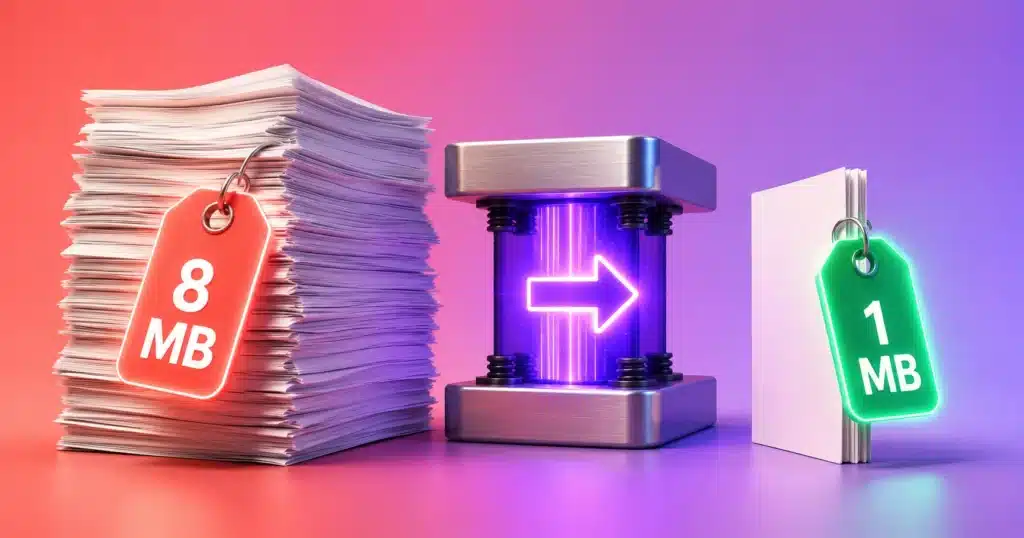
If your PDF is 8 MB, it is almost certainly full of images or scanned pages — and that means 1 MB is very achievable.
2Compress to 500 KB or 1 MB
- Pick a level. Light for the highest quality and modest savings, Balanced for a good middle ground, Strong for the smallest file. For a 1 MB target start with Light; for 500 KB start with Balanced.
- Upload the PDF. Drag it onto the tool. The file is compressed in your browser and never uploaded, so there is no size cap we impose; password-protected PDFs must be unlocked first — encrypted pages cannot be read.
- Process and read the result. The tool shows the new size next to the original, so you know immediately whether you are under the limit.
- Still too big? Go one level harder. Light → Balanced → Strong. Each step lowers the resolution and image quality of the rebuilt pages.
- Download. Your file is deleted from the server within an hour.
| Your file | For 1 MB try | For 500 KB try |
|---|---|---|
| Scanned document, 10–20 pages | Light | Balanced |
| Scanned document, 50+ pages | Balanced | Strong, or split it first |
| Report with photos and charts | Light | Balanced |
| Photo-heavy brochure or portfolio | Balanced | Strong |
| Mostly text, already under 1 MB | Nothing needed | Light |
3The trade-off, stated plainly
This compressor rebuilds each page as an optimised image. That is what makes it so effective on scans and image-heavy files — and it means any text in the result is part of a picture, so it can no longer be selected, searched or copied. For a scanned document that was already just images of text, you lose nothing. For a typed document you need to stay searchable, compression is usually the wrong tool, and the file is probably small enough already.
If you need both a smaller file and selectable text, the better move is to fix the source: export the document again at a lower image quality from Word, Google Docs or whatever produced it, or reduce the resolution of the photographs before they go in. A 300 DPI scan is standard for archiving; 150 DPI is perfectly readable on screen and roughly a quarter of the data.
4When compression alone won’t get you there
- Split it. Many “under 1 MB” rules apply per file, not per submission. The Split PDF tool breaks a long document into sections that each clear the limit comfortably.
- Remove what you don’t need. Blank pages, duplicated appendices and scanned covers add weight for nothing — drop them with Organize PDF.
- Shrink the images before the PDF exists. If you are building the PDF from photos, compress them first with the Image Compressor, then combine with JPG to PDF. This produces a much better result than compressing the finished PDF.
- Rescan at a lower resolution. If you control the scanner, 150–200 DPI in greyscale is a fraction of the size of 600 DPI colour and reads just as well.
Chasing a tighter target instead? We have dedicated walkthroughs for 200 KB and 100 KB, where the constraints are much harsher and the technique changes.
5Is it private?
Straight answer: this particular tool works on a server. Rebuilding every page of a large PDF is heavy work that a browser tab handles badly, so your file is uploaded over an encrypted connection, processed, offered for download and then deleted within an hour. Nothing is kept, and nothing is shared.
Many of our other PDF tools never upload anything at all — PDF to Word, merge and split, rotate and password protection all run entirely in your browser. We say which is which on every tool page, because that is the only detail that actually matters when the document is confidential.
6Frequently Asked Questions
How do I compress a PDF to under 1MB?
Upload it to the PDF Compressor and start with the Light setting, which keeps the most quality. Check the reported size; if it is still over 1 MB, move to Balanced and then Strong. Scanned and image-heavy files usually clear 1 MB easily.
How can I reduce a PDF to 500KB without losing quality?
Some quality loss is unavoidable, because size comes from image data. Balanced is normally the right setting for 500 KB and the difference is hard to see on screen. If the document is mostly text, splitting it or removing unnecessary pages preserves quality better than compressing harder.
Why won’t my PDF get any smaller?
Because there is nothing left to remove. Text-only PDFs are already compact, and a file that has been compressed once has little more to give. If the tool cannot genuinely reduce the size, it returns your original unchanged rather than handing back something larger or needlessly degraded.
Will the text still be selectable after compressing?
No. This method rebuilds each page as an optimised image, so text becomes part of the picture. If you need searchable text in the result, compress the source images before creating the PDF instead, or export it again at a lower quality from the original application.
Is there a file size or page limit?
There is no size or page limit we impose — compression runs in your browser, so your device’s memory is the only ceiling. Password-protected files must be unlocked first, since encrypted pages cannot be processed.
Get under the limit, keep the document readable, and move on with your day.