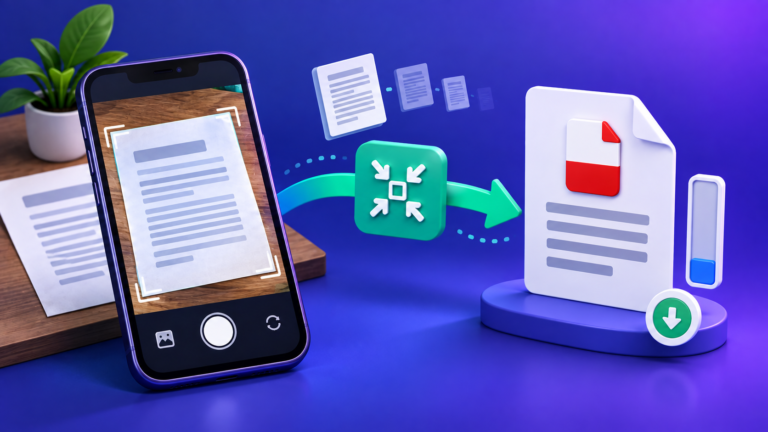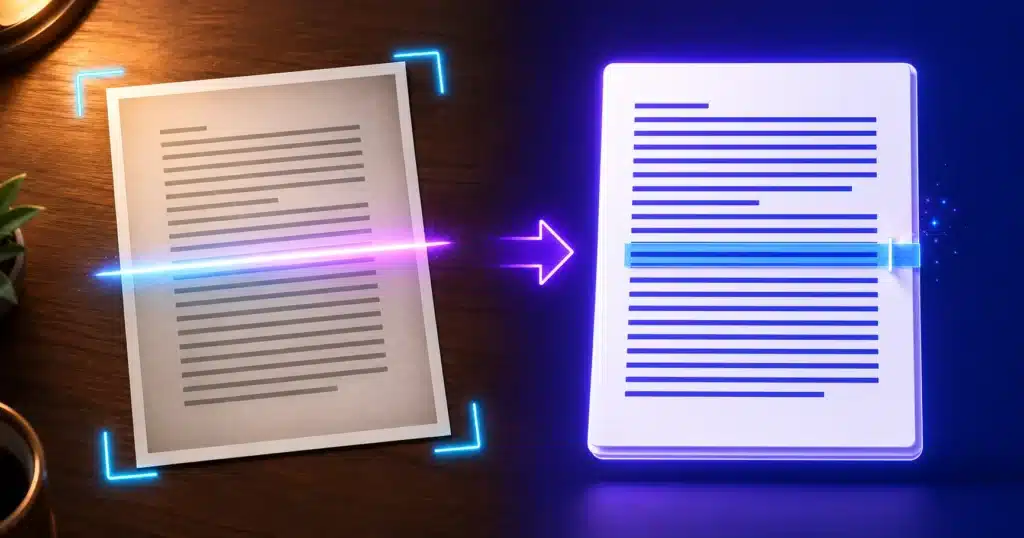
You have a photo of a page, a screenshot of a document, or a scan someone emailed instead of the file — and you need the words out of it without retyping them. That job is called OCR, Optical Character Recognition, and it now runs perfectly well inside a browser tab. This guide covers how to do it, the settings that turn a mangled result into a clean one, and the cases where OCR genuinely cannot help.
Quick answer: open the free Image to Text Converter, upload your JPG, PNG or screenshot, pick the language, and copy the extracted text. It runs in your browser with no sign-up — and for a scanned PDF, run the pages through OCR first, then send the text onward.
1What OCR actually does
A photograph of text contains no text. To a computer it is a grid of coloured dots that happens to look like writing. OCR analyses that grid, finds the shapes that are probably characters, matches them against the letterforms of a language it knows, and reconstructs words — using dictionary knowledge to resolve the ambiguous cases, which is how it tells a capital I from a lowercase l from the digit 1.
Two consequences follow, and they explain almost every OCR frustration:
- Quality in, quality out. A sharp, straight, high-contrast image gives near-perfect results. A dim, angled phone snap of a curved page does not.
- The language matters. OCR is matching against a specific alphabet and vocabulary. Running Hindi text through an English model produces nonsense, however clear the image.
2Extracting the text
- Upload the image. JPG, PNG and screenshots all work. Everything is processed inside your browser — the picture is never uploaded to a server, which matters when it is an ID, a payslip or a contract.
- Choose the language. The tool supports more than 50, and this is the single setting most worth getting right. Pick the language the document is actually written in, not your interface language.
- Set the page layout mode. The page segmentation setting tells OCR what shape the content is — a full page of text, a single block, a single line, or sparse text scattered across an image. Getting this right fixes most “the words came out jumbled” complaints.
- Scale up a low-quality image. If the source is small or slightly soft, the scale factor enlarges it before recognition, which often lifts accuracy noticeably.
- Read, then fix. Copy the extracted text and check it. Numbers, unusual names and anything in an unusual typeface are where errors cluster — a quick read-through is always faster than retyping the page.
Recognition happens locally in your browser. The engine downloads once and then works on your device, so the image and the text it contains never travel over the internet.
3What to expect, by source type
| Source | Typical accuracy | Notes |
|---|---|---|
| Screenshot of a web page or PDF | Excellent | The easiest case — crisp pixels, perfect alignment |
| Flatbed scan of printed text | Excellent | Scan at 300 DPI for the best results |
| Straight phone photo of a printed page | Good | Keep the page flat, fill the frame, avoid shadow |
| Photo taken at an angle or of a curved book | Mixed | Straighten it first; distortion breaks letter shapes |
| Multi-column layouts, tables, forms | Mixed | Text is captured but the arrangement often is not — process columns separately |
| Low-resolution or heavily compressed image | Poor | Try the scale factor; otherwise re-capture it |
| Handwriting | Poor | Standard OCR is trained on printed type — treat any result as a rough draft |
4Five fixes for a bad result
- Crop to just the text. Logos, borders, fingers and desk edges all confuse the layout analysis. Trim with the Smart Image Cropper and try again.
- Straighten it. Even a few degrees of rotation hurts accuracy. The Image Rotator fixes sideways scans in one click.
- Raise the contrast. Grey text on a grey background is hard for OCR for the same reason it is hard for you. Push contrast and brightness with the Image Enhancer before recognising.
- Do not compress first. JPEG artefacts blur the edges of letters. Always OCR the highest-quality version you have and compress afterwards if you need to.
- Split the job. Two-column pages, mixed languages and mixed layouts all do better when handled one region at a time.
5Scanned PDFs: the workflow that actually works
A scanned PDF is just images wrapped in a PDF container, which is why converters hand you a blank document and copy-paste selects nothing. There is no text to find — it has to be recognised first.
| Your PDF | What to use |
|---|---|
| Real text inside (you can select words in a reader) | PDF to Word — converts directly, keeping headings and formatting |
| Scanned pages (selecting does nothing) | Export or screenshot the pages, run them through Image to Text, then paste the result into your document |
| You want a searchable PDF back | The Image to PDF OCR tool builds a PDF with a recognised text layer |
The quick test: open the PDF and try to select a sentence. If the cursor highlights words, it has a text layer. If it draws a box over a picture, you need OCR.
6What OCR is not good at
Be realistic about three things. Handwriting recognition is a different technology and standard OCR handles cursive badly. Layout is not preserved — you get the words, not the columns, tables and spacing. And accuracy is never guaranteed, so anything consequential (bank details, medication doses, legal figures, exam answers) must be proofread against the original before you rely on it.
Used within those limits, OCR is one of the highest-value few seconds you can spend: a page of text you would have spent ten minutes retyping, extracted, checked and pasted before the kettle boils.
7Frequently Asked Questions
How do I extract text from an image for free?
Upload the image to the Image to Text Converter, select the document’s language, and copy the recognised text. It is free, needs no account, and the image is processed in your browser rather than uploaded.
How do I copy text from a screenshot?
Screenshots are the easiest case for OCR because the pixels are sharp and perfectly aligned. Upload it, run recognition and copy the result — accuracy is usually near perfect for standard on-screen text.
Can OCR read handwriting?
Not reliably. Standard OCR is trained on printed type, so neat block capitals may partly work while cursive generally will not. Treat any handwriting result as a rough draft that needs checking line by line.
Why is my extracted text full of mistakes?
Usually low image quality, a skewed or angled photo, poor contrast, or the wrong language selected. Crop to the text, straighten the image, raise the contrast and confirm the language — those four fixes solve most cases.
Which languages are supported?
More than 50, selectable before recognition. For documents mixing two scripts, process each section separately with the matching language rather than hoping one model handles both.
Get the words out once, and never retype a page again.