Every platform crops differently, and a post that looked perfect in your editor can lose its headline in the Instagram feed, blur on a YouTube card or sit letterboxed on LinkedIn. Getting the dimensions right takes about ten seconds and saves the whole design. Here is the chart for every size that matters, the aspect ratios behind them, and the safe-zone rules nobody mentions.
Quick answer: the sizes you need most are 1080 × 1080 (Instagram square), 1080 × 1350 (Instagram portrait), 1080 × 1920 (any Story or Reel), 1280 × 720 (YouTube thumbnail) and 1200 × 630 (Facebook and link previews). The free Social Media Image Resizer has all of them as one-click presets.
1Every size in one chart
| Platform & placement | Size (px) | Ratio |
|---|---|---|
| Instagram — square post | 1080 × 1080 | 1:1 |
| Instagram — portrait post | 1080 × 1350 | 4:5 |
| Instagram — Story / Reel | 1080 × 1920 | 9:16 |
| Facebook — feed post | 1200 × 630 | 1.91:1 |
| Facebook — cover photo | 820 × 312 | 2.63:1 |
| YouTube — thumbnail | 1280 × 720 | 16:9 |
| YouTube — channel art | 2560 × 1440 | 16:9 |
| X (Twitter) — post image | 1600 × 900 | 16:9 |
| X (Twitter) — header | 1500 × 500 | 3:1 |
| LinkedIn — feed post | 1200 × 627 | 1.91:1 |
| Pinterest — standard pin | 1000 × 1500 | 2:3 |
| Profile picture / WhatsApp DP | 500 × 500 | 1:1 |
Those twelve cover the overwhelming majority of real posting. Our general Image Resizer carries a wider preset library including profile sizes, LinkedIn covers and web hero images if you need something more specific.
2Ratios matter more than pixels
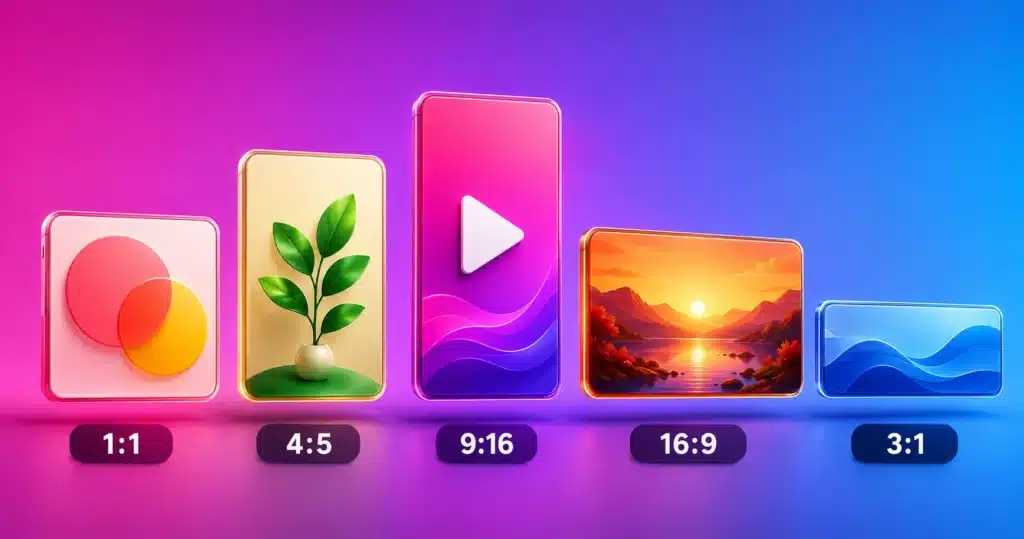
Platforms rescale your image to fit their layout, but they will not change its shape — anything that does not match gets cropped or padded. Learn the four ratios and you can design for all of them:
- 1:1 square. The safest all-rounder. Works in feeds everywhere and survives a profile crop.
- 4:5 portrait. The tallest image Instagram allows in the feed, so it occupies the most screen — the best-performing shape for reach on mobile.
- 9:16 vertical. Stories, Reels, Shorts and TikTok. Full-screen on every phone.
- 16:9 landscape. YouTube, presentations, and most link previews.
A practical shortcut: design once at 1080 × 1350, then export a 1:1 crop and a 9:16 version from the same artwork. Keep the important content in the middle and all three crops survive.
3The safe zones nobody tells you about
The full canvas is not the visible area. On Stories and Reels, the top and bottom roughly 250 pixels sit behind the profile bar, caption and action buttons — keep text out of them. YouTube channel art is uploaded at 2560 × 1440 but only the central band is guaranteed to show on every device, so logos and text belong in the middle. Facebook covers crop differently on desktop and mobile, and profile pictures are always circles, so anything in the corners is lost.
The rule that covers all of it: put nothing you care about within about 10% of any edge.
4Resizing without wrecking the image
- Start bigger than you need. Downscaling is clean; upscaling a small image just makes a bigger blurry image.
- Crop to the ratio, then resize to the pixels. Doing it the other way round is what produces squashed faces and stretched logos. The Smart Image Cropper handles the first step.
- Pick the right format. JPG for photographs, PNG when there is text, a logo or transparency, WebP when you also control the website it appears on.
- Compress last. Platforms re-compress everything you upload, so send a clean file — but if you are near an upload limit, the Image Compressor trims it without touching the dimensions.
- Never upload a screenshot of a design. Screenshots are already compressed and usually the wrong size; export from the source instead.
5Do it in one step
The Social Media Image Resizer holds all twelve presets above — choose the platform and placement, drop the image in, and download it as PNG, JPG or WebP. It runs entirely in your browser, so nothing is uploaded and there is no watermark or sign-up.
While you are setting up a post, the Social Media Character Counter keeps your caption inside each platform’s limit, the Hashtag Generator builds the tag set, and once the post is live the Engagement Rate Calculator tells you whether it actually landed.
Platforms change specs. These are the sizes in use as this is written, and they shift every year or two — usually by small amounts that only matter for cover images and channel art. For a critical brand asset, check the platform’s own help page before you commission the design.
6Frequently Asked Questions
What size should an Instagram post be?
1080 × 1080 px for a square, 1080 × 1350 px for a portrait post, and 1080 × 1920 px for a Story or Reel. Portrait takes up the most screen space in the feed, which is why many creators default to it.
What is the correct YouTube thumbnail size?
1280 × 720 pixels, a 16:9 ratio. Keep any text large and central — the thumbnail is often displayed at a fraction of that size on phones.
What size is a LinkedIn post image?
1200 × 627 px works well for feed posts and link previews. The same 1.91:1 shape is what Facebook uses, so one export can serve both.
What is the best image size for Pinterest?
1000 × 1500 px, a 2:3 ratio. Taller pins take more vertical space in the feed, but extremely long pins get truncated, so 2:3 is the reliable choice.
Why does my image look blurry after uploading?
Usually because it was upscaled from something smaller, or because it was the wrong shape and the platform re-compressed it heavily after cropping. Start from the largest original you have and export at the exact preset size.
Can I resize social media images for free?
Yes. The Social Media Image Resizer includes every preset in the chart above, runs in your browser with nothing uploaded, and adds no watermark.
Right shape, right pixels, nothing important near the edges.