There are thousands of free online tools out there, and most of them waste your time: sign-up walls, watermarks on the download, a “free” tier that stops at three files a day, or an upload form that quietly keeps a copy of your document. We build and maintain 230+ tools, so we spend a lot of time using them — and these five are the ones that get opened most, by us and by everyone else.
This is not a list of every tool we make. It is the five that solve a problem people hit every single week, with the honest limits of each one spelled out: what they do well, where they fall over, and which alternative to reach for instead.
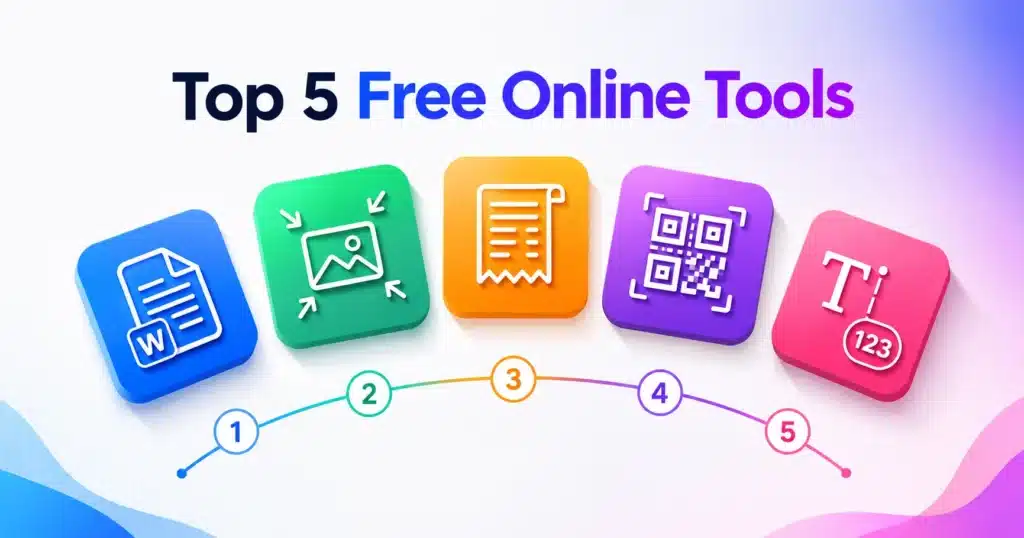
- 1PDF to WordEdit a locked-looking PDF
- 2Image CompressorGet under an upload limit
- 3Invoice GeneratorBill a client in five minutes
- 4QR Code GeneratorLinks, WiFi and contact cards
- 5Word CounterHit a word or character limit
The short version: all five are free, need no account, add no watermark, and run entirely inside your browser tab — your files are never uploaded to us. Jump straight in with the PDF to Word Converter, Image Compressor, Invoice Generator, QR Code Generator or Word Counter.
0All five, compared at a glance
Before the detail, here is the comparison most people actually want — what each tool is for, where the work happens, and what you get back.
| Tool | Best for | Where it runs | Practical limit | You get | Typical time |
|---|---|---|---|---|---|
| PDF to Word | Making a PDF’s text editable again | Your browser | 50 MB; needs real text, not a scan | .docx file | A few seconds for ~20 pages |
| Image Compressor | Squeezing a photo under a size limit | Your browser | Whatever your device can open | Compressed JPG | Instant |
| Invoice Generator | Sending a professional bill | Your browser | Unlimited line items | PDF or printout | 3–5 minutes |
| QR Code Generator | Links, WiFi, contact cards, events | Your browser | 150–500 px output | PNG, JPG or SVG | Instant |
| Word Counter | Word, character and reading-time limits | Your browser | None worth hitting | Live on-screen stats | Live as you type |
Every one of them is free with no account, no watermark and no daily cap. That is the baseline, not a feature — so the rest of this article is about the things that actually differ.
1PDF to Word Converter — the one people need most
The most common document problem in the world is a PDF you need to change: a contract with the wrong date, a report someone sent without the source file, a form you would rather retype than re-scan. A free PDF to Word converter turns that PDF back into an editable .docx you can open in Word, Google Docs, LibreOffice or Pages.
How ours works
Drop the PDF onto the page and the converter reads the text layer — every character, its position on the page, its size and whether it is bold or italic — then rebuilds it as real Word paragraphs. Two switches control the result:
- Detect headings automatically. Lines set noticeably larger than the body text become genuine Word heading styles, so the navigation pane and table of contents work in the .docx.
- Keep page breaks. Keeps the original pagination. Turn it off if you would rather have one continuous flow to re-edit.
The whole conversion happens inside your browser tab using your own device’s processing power. Nothing is uploaded, which matters more than it sounds: contracts, payslips, medical letters and ID documents are exactly the files people feed into random converters every day.
What converts well — and what doesn’t
| Type of PDF | Result | What to expect |
|---|---|---|
| Reports, letters, articles | Excellent | Paragraphs, headings, bold and italic come through cleanly |
| Contracts and forms | Good | Text is fully editable; heavy form layouts may need tidying |
| Multi-column layouts | Mixed | Columns are read top to bottom, so reading order may need a fix |
| Slides and brochures | Text only | You get the words, not the design |
| Scanned pages / photos of text | Not supported | There is no text layer to read — run it through Image to Text (OCR) first |
Strong points
- Nothing leaves your device
- No page limit, no watermark, no sign-up
- Real Word headings, not a text dump
- ~20 pages in a few seconds on a normal laptop
Honest limits
- Editable text, not a pixel-perfect design clone
- Scanned PDFs need OCR first
- Very large files can exhaust browser memory — compress above ~50 MB
2Image Compressor — for every “file too large” error
Upload limits are everywhere: job portals, government forms, college applications, WordPress media libraries, WhatsApp Business catalogues. A modern phone photo is 3–6 MB, and almost every one of those limits is smaller than that. Compression fixes it by re-encoding the picture at a lower quality — the dimensions stay the same, the file gets dramatically lighter.
Where to put the quality slider
This is the only decision that matters. Rough guide for a typical 4 MB phone photo — the exact numbers depend on the image, because a busy landscape compresses very differently from a flat studio shot:
| Quality | Typical result | Visible difference | Use it for |
|---|---|---|---|
| 90–100 | Largest of the compressed options | None | Print, portfolios, archive copies |
| 80–85 | Strong saving, high fidelity | Essentially none | Website images, product photos |
| 70–75 | The sweet spot for most photos | Not noticeable at normal viewing size | Blogs, social posts, email attachments |
| 50–65 | Very small files | Softness starts to show on close inspection | Squeezing under a strict form limit |
| Below 50 | Smallest | Blockiness around edges and text | Last resort only |
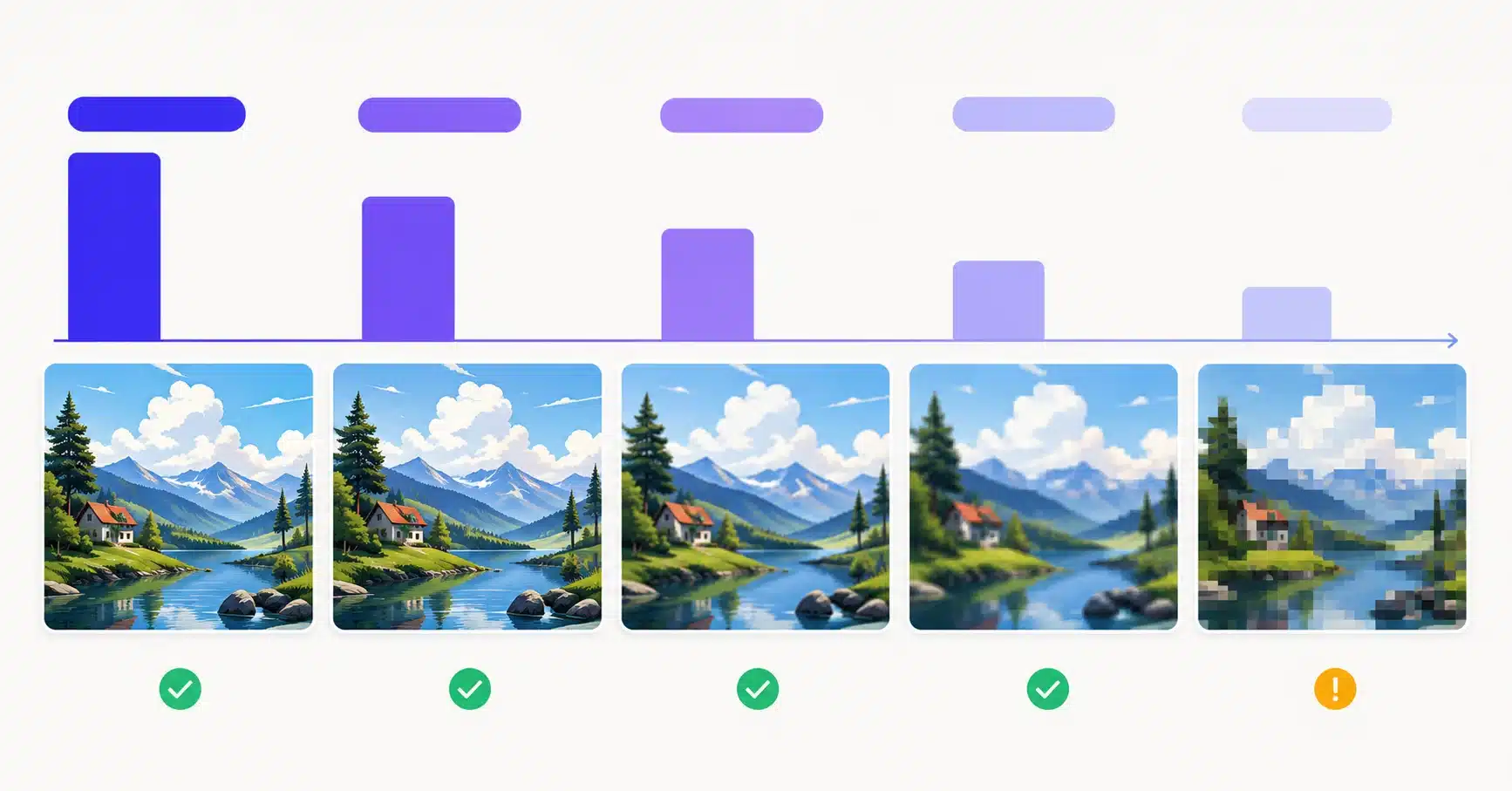
Compressing and resizing are different jobs. Compression keeps the pixel dimensions and cuts the file weight; resizing changes the dimensions. For the smallest possible file, do both: resize to the size you will actually display with the Image Resizer, then compress. Chasing a specific number? Our step-by-step guide to compressing an image to 20 KB walks through the exact settings.
Graphics with text, logos or sharp lines deserve a higher setting than photographs — compression artefacts hide well in a leafy background and stand out badly around a hard black edge. And because everything is drawn on a canvas in your own browser, the photo never travels anywhere, which is worth knowing if you are compressing an ID or a signed document for a form upload.
3Invoice Generator — a professional bill in five minutes
Freelancers, consultants, small shops and anyone with a side business hits the same wall: the work is done, the client wants an invoice, and there is no accounting software. A free invoice generator closes that gap without a subscription — and without a template watermark advertising someone else’s product on your bill.
What you can put on it
| Field | What it does |
|---|---|
| Logo and accent colour | Your branding on the document, not ours |
| Invoice number and date | Sequential numbering your accountant can follow |
| Currency | Pick the currency and the symbol follows through every total |
| Line items | Description, quantity, rate — amounts calculate themselves as you type |
| Discount, tax and shipping | Percentage discount and tax, plus a flat fee, applied in the right order |
| Tax label | Rename “Tax” to GST, VAT or whatever your country uses |
| Notes and terms | Payment terms, bank details, thank-you line |
| Status | Mark the invoice paid, unpaid or overdue |
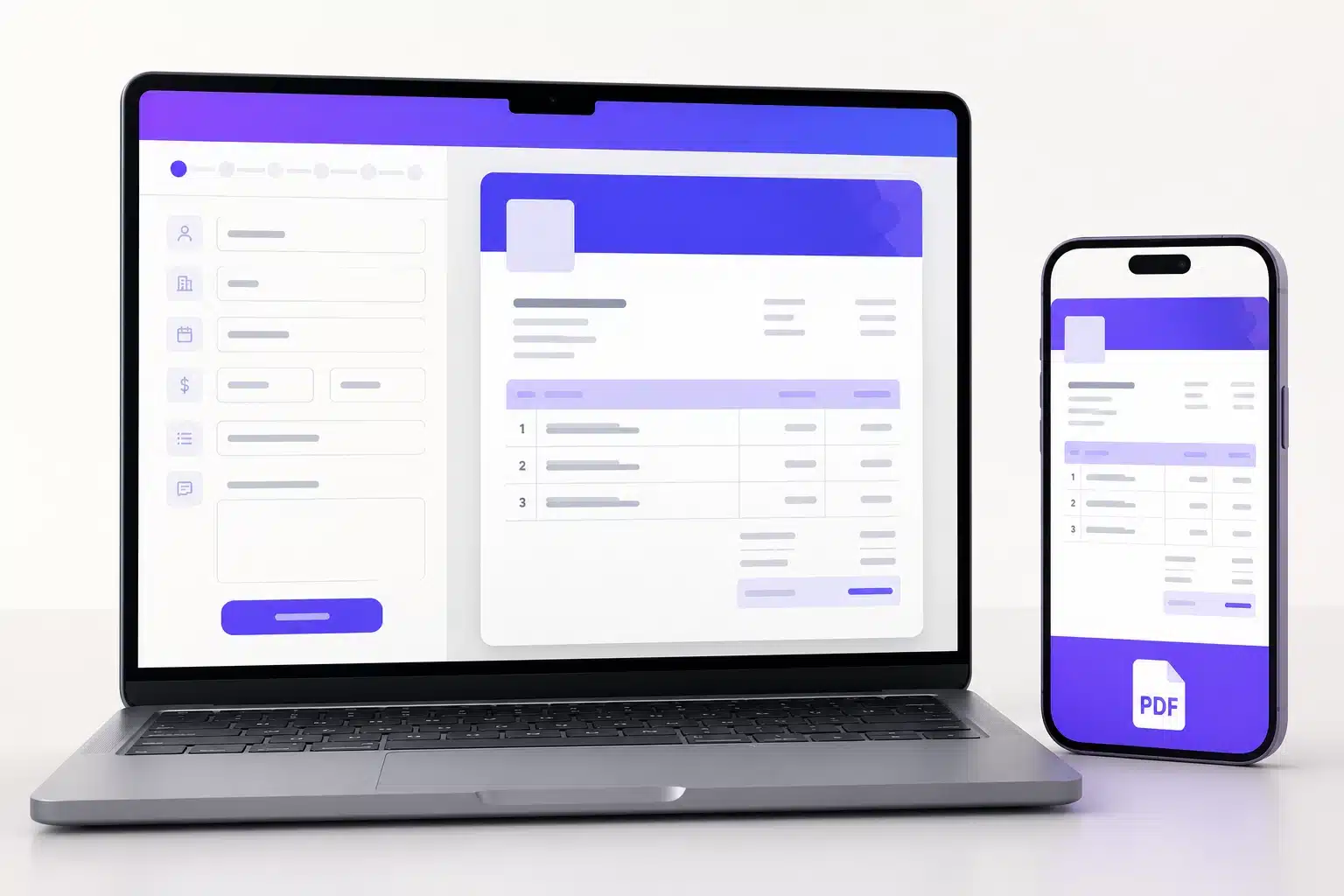
A live preview shows the finished document as you fill the form, so there are no surprises — then download it as a PDF or print straight from the page. Your business details can be stored in the browser so the next invoice starts half-filled.
Two things an invoice generator is not. It is a document builder, not bookkeeping software — it will not track payments, chase clients or file returns. And if you charge tax, the legal requirements for a compliant invoice (registration numbers, place of supply, prescribed wording) vary by country. Enter what your local rules require; the tool prints it faithfully, but it cannot know them for you.
Quoting for work before you invoice for it? The Quotation Generator uses the same line-item system — and our guide on how to write a price quotation covers the nine elements a quote should contain.
4QR Code Generator — far more than links
Most people know QR codes as “the thing on the restaurant menu”. They encode far more than a web address, and a free QR code generator with no expiry is genuinely useful for events, shops, business cards and home WiFi. Ours creates nine types:
| Type | What happens when it’s scanned | Good for |
|---|---|---|
| Website URL | Opens the page | Posters, packaging, menus |
| WiFi network | Joins the network without typing the password | Cafés, offices, guest rooms |
| vCard contact | Offers to save the contact | Business cards, name badges |
| Email / phone / SMS | Opens a pre-addressed message or dialler | Support desks, flyers, order forms |
| Location | Drops a pin in the maps app | Venues, deliveries, site visits |
| Event | Adds the event to the calendar | Invitations, conferences |
| Plain text | Shows the text | Serial numbers, instructions |

Error correction: the setting nobody explains
Every QR code carries redundant data so it still scans when part of it is damaged, dirty or covered. That is the error-correction level, and it is the reason you can drop a logo in the middle of a code and still have it work.
| Level | Recoverable | Choose it when |
|---|---|---|
| L — Low | ~7% | Clean digital use only: a slide, an email, a web page |
| M — Medium | ~15% | The sensible default for printed material |
| Q — Quartile | ~25% | Small logo in the centre, or a busy background |
| H — High | ~30% | Outdoor signage, packaging, anything that gets scuffed |
Size rule of thumb: a QR code should be about one-tenth of the distance it will be scanned from. A code read from two metres away needs to be roughly 20 cm across. For print, download the SVG — it scales to a poster with no blur, unlike a PNG. Always test the finished code with two different phones before you print a thousand of them.
Codes made here are static: the data lives inside the pattern itself, so they never expire and no one is tracking the scans. The trade-off is that you cannot change the destination later — for a link you might want to redo, point the code at a URL you control rather than a third-party one.
5Word Counter — small tool, constant use
Every piece of writing has a limit. Assignments have word counts, meta descriptions get truncated, social platforms cut you off mid-sentence, and a speech that runs three minutes long is a real problem. A free word counter answers all of that live, as you type.
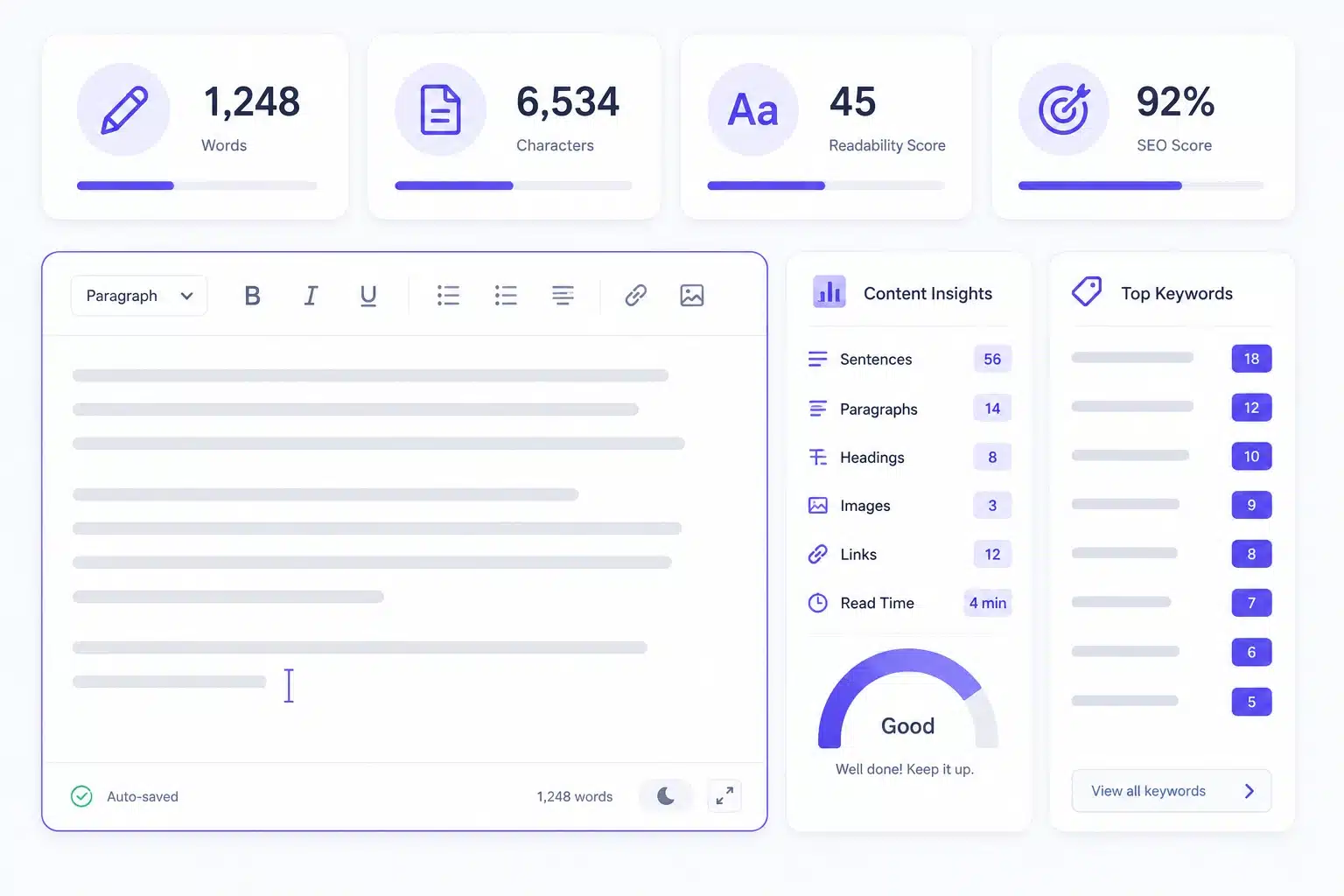
Alongside words and characters it reports characters without spaces, sentences, paragraphs, unique words, the longest word, and your six most-repeated keywords with their counts — a fast sanity check on whether you have leaned on the same phrase eleven times. Reading time is calculated at about 200 words per minute and speaking time at about 130, the standard averages for silent reading and comfortable presentation pace.
The limits worth memorising
| Where | Practical limit | Note |
|---|---|---|
| Google title tag | ~50–60 characters | Longer titles get truncated in results |
| Meta description | ~155–160 characters | Front-load the important words |
| SMS (single message) | 160 characters | Beyond that it splits and bills as more |
| X / Twitter post | 280 characters | Standard accounts |
| Instagram caption | 2,200 characters | Only the first ~125 show before “more” |
| LinkedIn post | 3,000 characters | Truncated after roughly 200 in the feed |
| YouTube description | 5,000 characters | First ~150 appear above the fold |
Pasting a draft in also tells you something a word processor hides: if a 900-word article has only 300 unique words, it is repeating itself. Need the keyword breakdown in more depth? Use the Keyword Density Checker. Fixing inconsistent capitalisation across a document? The Case Converter does it in one click.
6Browser tools vs cloud tools — how to tell, and why it matters
Free online tools work in one of two ways, and the difference decides what you should be willing to put into them.
| Runs in your browser | Runs in the cloud | |
|---|---|---|
| Your file | Never leaves the device | Uploaded over an encrypted connection, then deleted |
| Speed | Depends on your device; no upload wait | Consistent, but you wait for the round trip |
| Heavy files | Limited by browser memory | Handles what a laptop struggles with |
| Works offline | Often, once the page has loaded | No |
| Best for | Anything confidential | Format conversions a browser cannot do well |
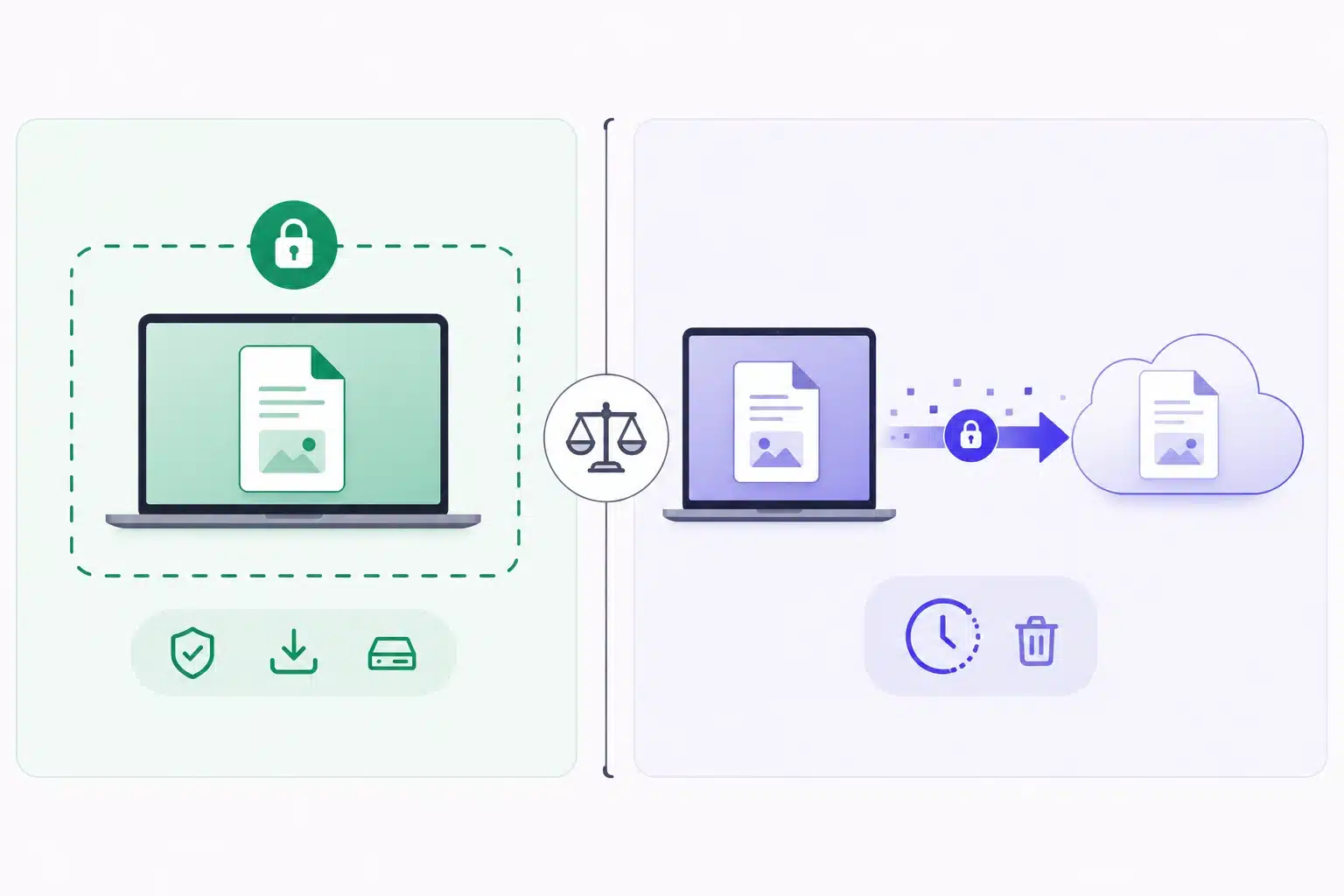
All five tools in this list run in your browser. A handful of our other tools genuinely need a server — the PDF Compressor rebuilds every page as an optimised image, which is far beyond what a browser tab should attempt, so files up to 50 MB are uploaded securely and deleted within an hour. We say which is which on every tool page, because “your files are safe” means nothing without saying where they went. If you need a specific target size, the 100 KB and 200 KB guides show the settings that get there.
7Which one do you actually need?
- “I need to edit this PDF.” → PDF to Word. If it’s a scan, OCR it first.
- “The upload says my file is too large.” → Image Compressor for photos, PDF Compressor for documents.
- “I need to bill a client today.” → Invoice Generator, or the Quotation Generator if the work isn’t done yet.
- “I need a code on a poster / table / business card.” → QR Code Generator, level M or Q, downloaded as SVG.
- “Am I over the limit?” → Word Counter.
- “I’m applying for jobs.” → Resume Generator and Cover Letter Generator — 20 templates, PDF or Word out.
- “I’m working out a loan or a tax number.” → the calculators, starting with our guide to calculating EMI.
8Frequently Asked Questions
Are free online tools safe to use with private documents?
It depends entirely on where the processing happens. Tools that run in your browser never send the file anywhere, which makes them safe for contracts, payslips and ID documents. Cloud tools upload your file, so check that the site says how long it is kept — ours are deleted within an hour. If a tool does not tell you either way, assume it uploads.
Do I need to sign up or install anything to use these tools?
No. All five work in any modern browser with no account, no email address, no extension and no download. There are no daily limits and nothing is watermarked.
Which free tool converts PDF to Word without losing formatting?
Our PDF to Word Converter preserves paragraphs, bold and italic text, and turns larger lines into real Word headings. It produces an editable document rather than a pixel-perfect copy of the design — no converter reproduces a complex layout exactly, so expect to spend a minute tidying heavy multi-column or brochure-style pages.
How much can I compress an image before it looks bad?
For photographs, quality 70–80 typically removes most of the file size with no difference you would notice at normal viewing size. Below about 50 you start seeing blockiness around edges and text. Logos and graphics with sharp lines need a higher setting than photos, because artefacts show up more on hard edges.
Do these tools work on a phone?
Yes — all five are built mobile-first and work in Chrome, Safari, Firefox and Edge on Android and iOS. Very large PDFs are the one exception: phone browsers have less memory than laptops, so a heavy file is better converted on a computer.
Everything on AMTake is free to use, with no sign-up and no watermark. Where a tool needs a server, we say so on the tool page — and where it doesn’t, your file simply never leaves your device.
Bookmark the one you use most — future you will be glad it’s one click away.