Your business
Client & quote details
Items
Quote numbers increment automatically. Saves in this browser.
User Guide
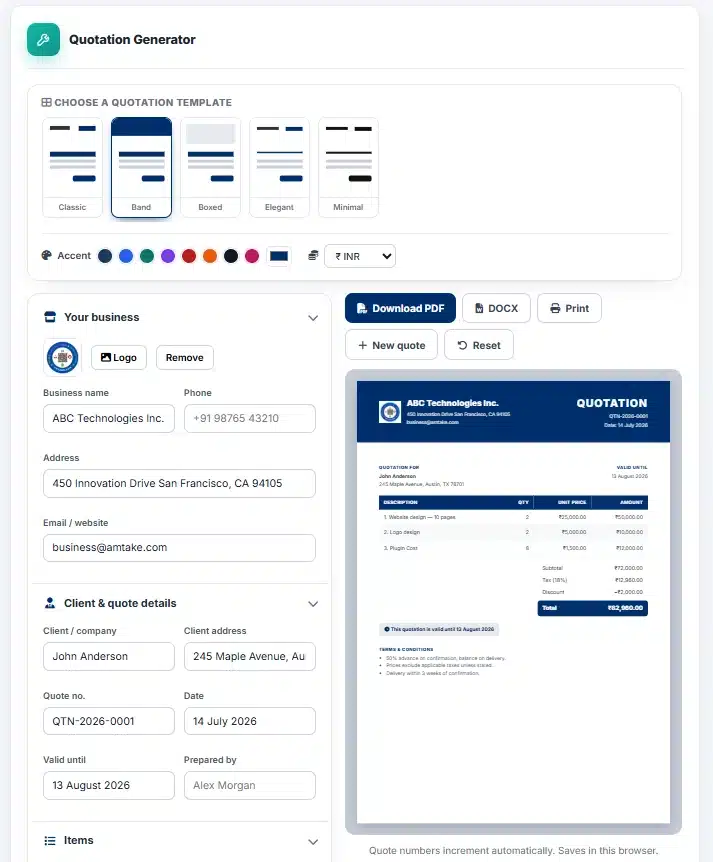
Step 1 — Your business & client
- Add your business details and logo, then the client’s name and address. The quote number is generated automatically.
Step 2 — Add the items
- List products or services with quantity and unit price — subtotal, tax, discount and grand total calculate live.
Step 3 — Validity & terms
- Set the quotation date and valid-until date, and add your terms and conditions.
Step 4 — Download & send
- Pick a template, preview live, then download a professional PDF or Word file to send to your client.
About the Quotation Generator
The AMTake Quotation Generator creates professional price quotes your clients can trust. Add your business and client details, list the products or services with quantities and prices, set validity and terms, and download a polished PDF or Word quotation — free, with automatic quote numbering and live totals.
Win more work with professional quotes
A clear, well-presented quotation signals reliability and helps close deals faster. Choose a template, apply your brand colour and logo, and every quote you send looks consistent and credible. The valid-until date and terms section set expectations up front, and the auto-generated quote number keeps your paperwork organised.
Accurate, effortless pricing
Line items calculate themselves — quantity × unit price per row, then subtotal, tax percentage, optional discount and grand total, all updating live. When the client accepts, convert the same details into a bill with the Invoice Generator, and record payment with the Receipt Generator. Everything runs privately in your browser.
Frequently Asked Questions
Is the Quotation Generator free?
Yes — unlimited quotations with no sign-up and no watermark.
What is the difference between a quotation and an invoice?
A quotation proposes prices before work begins and usually has a validity period; an invoice requests payment after goods or services are delivered. This tool creates the quotation — pair it with our Invoice Generator for billing.
Can I set a validity period and terms?
Yes. Add a valid-until date and your terms and conditions — both appear clearly on the quotation.
Does it calculate totals automatically?
Yes. Line totals, subtotal, tax, discount and the grand total all calculate live as you type.
Can I download it as Word?
Yes — export a print-ready PDF or an editable Word (.docx) file to customise further.