Turning a PNG, a WebP or a GIF is free. Those formats store pixels
exactly, so redrawing them at a quarter turn and saving again gives back the
same picture. Nothing is lost however many times you do it.
Turning a JPEG normally is not free. JPEG throws away detail every time
it saves. Redraw and re-save a photo ten times and you can see the difference;
do it once and you almost certainly cannot. The lossless option above sidesteps
this entirely for quarter turns by never re-saving the picture at all.
A fine angle always redraws. Straightening by two degrees moves every
pixel, so there is no tag-rewriting shortcut — and a JPEG straightened
that way is re-compressed. Do it once, from the original, rather than nudging
the same file five times.
Why a rotated photo so often comes back bigger than it went in
You upload a 170 KB photograph, turn it a quarter turn, and download something over two megabytes. Nothing is wrong with your picture. What has usually happened is that the tool quietly changed its format.
Almost every browser-based image tool works the same way: it draws your picture onto a canvas, applies the change, and asks the canvas to save the result. But a canvas holds nothing except pixels. It has no memory of the file it was given, so when it saves it has to be told which format to use — and if nobody tells it, it writes PNG.
PNG is lossless, which sounds like the safer choice and is exactly the wrong one for a photograph. JPEG achieves its small size by discarding detail the eye barely notices. PNG stores every pixel faithfully, which is superb for a logo with flat colour and terrible for a beach at sunset with a million subtle gradations. Re-saving a photograph as PNG undoes JPEG’s compression and replaces it with a scheme that has almost nothing to work with.
The effect is not subtle. Rotating a 171,373-byte photograph by 90 degrees produced a 2,159,805-byte PNG — 12.6 times the original. This page keeps your format. A JPEG comes back a JPEG, a PNG comes back a PNG, and the file size of both is shown next to the result, so if something does grow you can see it rather than discover it later.
Two ways to turn a picture, and only one of them is free
There is an obvious way to rotate an image and a much better one that hardly any web tool offers.
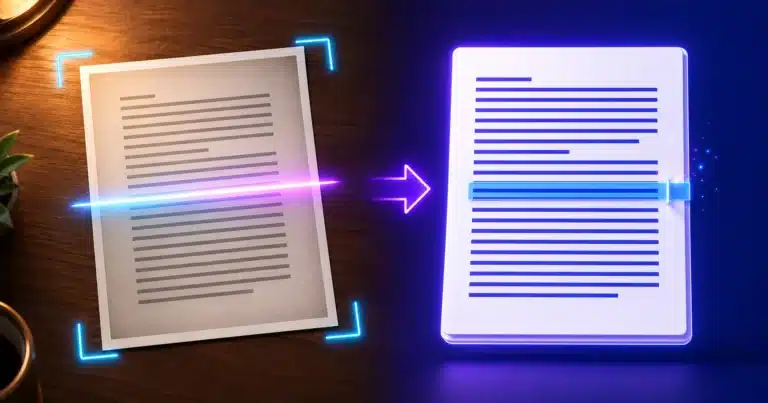
The obvious way is to redraw it: decode the file into pixels, turn the pixels, encode them again. That works on anything, at any angle. For a PNG, a WebP or a GIF it costs nothing at all, because those formats store pixels exactly — you get the same picture back however many times you do it.
For a JPEG it is not free. JPEG throws away a little detail every time it saves. Once, you will not see it. But people rarely rotate once: they turn a photo, notice it went the wrong way, turn it back, and each pass shaves off a little more. That accumulating damage is called generation loss, and it is entirely avoidable here.
The better way, for quarter turns of a JPEG, is not to touch the pixels at all. Every JPEG can carry a small tag called Orientation, which tells any program that opens it which way up the picture should be shown. Cameras have written it for decades — it is how your phone knows a photo was taken sideways. Changing that tag turns the picture without decoding a single block of image data.
That is what this tool does by default. On the test above, the file went from 140,386 bytes to 140,422 — 36 bytes larger, all of it the tag itself, with the compressed image data byte-for-byte identical to the original. The EXIF, the GPS coordinates and the colour profile all survive, because nothing was rewritten. It is the same trick the venerable command-line tool jpegtran has offered photographers for years, done in your browser.
The catch, and it is stated on the tool itself rather than buried here: a handful of older programs ignore the Orientation tag and show the picture the way it is stored. Every current browser, phone gallery and operating system preview honours it — browsers do so by default under the image-orientation rule — but if you are sending a photo into some elderly print workflow, uncheck the box and let it redraw.
Straightening a horizon is a different job from turning a page
Most rotation tools offer four choices: none, left, right, upside down. That covers a scanned page and a sideways phone photo, and it completely fails at the commonest reason people reach for a rotator — a picture that is only slightly crooked.
A sea horizon two degrees off level is instantly noticeable and cannot be fixed by any quarter turn. This page gives you a slider and a number box from −180° to 180°, in tenths of a degree, so you can level a horizon, straighten a photographed document, or square up a picture of a whiteboard.
Small angles are usually all you need. One to three degrees corrects most hand-held shots. If you find yourself dialling in more than about ten, the picture was probably taken at an angle on purpose, and straightening it will cost you a lot of the frame — which brings us to the awkward part.
The corners problem, and the two honest answers to it
Turn a rectangle by anything other than a quarter and it no longer fits its own frame. The corners stick out and gaps open up along the edges. There is no clever way around this; there are only two answers, and every tool picks one, usually without telling you.
Make the canvas bigger. Every pixel of the original survives, and the new corners are filled — transparent, white, black, or a colour you choose. The image gets slightly larger and gains a border. Use this when nothing may be lost: a scanned document, a piece of artwork, anything you might straighten again later.
Zoom in until the corners disappear. The frame keeps its original size and shape, and the picture is enlarged just enough to cover it, which throws away a border all the way round. This is what photo editors do when you drag a straighten slider, and it is what you want for a photograph — nobody wants a holiday snap with white wedges in the corners. The bigger the angle, the more of the edges go.
One detail worth knowing before you pick transparent corners: JPEG cannot store transparency at all. If you ask for see-through corners and the output is a JPEG, they will come out white — the tool says so before you press the button, and fills them white deliberately rather than letting them encode as black, which is what happens when transparency meets JPEG unguarded. To keep genuinely clear corners, choose PNG or WebP as the output format.
What a rotation does to the information hidden in your photo
A photograph from a phone or a camera carries far more than pixels. There is the make and model, the lens, the shutter speed, the date and time to the second, often the exact latitude and longitude, sometimes the owner’s name, and a colour profile that tells a printer how the colours were meant to look. All of it lives in an EXIF block at the front of the file, described in the CIPA DC-008 standard that defines Exif.
Redrawing a picture on a canvas destroys every bit of that. The browser hands back pixels and nothing else, so the output has no camera, no date, no location and no colour profile. Most web tools do this silently.
Whether that is damage or a favour depends entirely on what you are doing. If you are about to post a photo of your house publicly, stripping the GPS coordinates is the single most useful thing a tool could do for you. If you are a photographer organising a shoot by date and lens, losing it is a disaster.
So this page tells you which happened, per file. The lossless route keeps everything, because it rewrites one tag and leaves the rest of the file alone. The redraw route keeps nothing, and the row says so. If you want the metadata gone, redraw deliberately — turn the picture a quarter and back, or convert the format — rather than hoping a tool discards it for you.
Why your phone photo looks upright here and sideways somewhere else
This is the most common confusion around image rotation, and it is worth explaining because it is not a fault in either program.
When you take a photo holding the phone sideways, the camera does not turn the picture. It stores the pixels exactly as the sensor saw them and writes an Orientation tag saying “show this rotated”. Your gallery reads the tag and shows it upright. Upload it somewhere that ignores the tag — some older forums, a few desktop applications, the occasional print service — and it appears on its side.
That is why a photo can look perfectly fine on your phone and sideways to everybody else. The fix is to bake the rotation into the pixels: load it here, uncheck the lossless option, and rotate. The result is stored the right way up with no tag to misread, and it will look correct everywhere, at the cost of one JPEG re-save.
If the reverse happens — a picture that looks upright everywhere suddenly appears turned after you edit it — a program has redrawn the pixels while leaving the old Orientation tag in place, so the rotation gets applied twice. Rotating it back here will fix it.
Questions people ask about rotating images
Does rotating an image reduce its quality?
For a PNG, a WebP or a GIF, no — those store pixels exactly. For a JPEG, redrawing it does cost a little, though not enough to see after one pass. Use the lossless option for quarter turns and it costs nothing at all, because the picture is never re-saved.
Can I rotate by an exact number of degrees?
Yes — type it into the Degrees box, to one decimal place, anywhere from −180 to 180. Negative turns anticlockwise. The slider is there for finding the angle by eye; the box is there when you already know it.
Will my transparent PNG stay transparent?
Yes. A PNG stays a PNG and its alpha channel is untouched, and if a fine angle opens up new corners you can leave those see-through too. Every preview here sits on a chequerboard so you can actually see the transparency rather than take it on trust — on a white background, a see-through area and a white area look identical.
Can I rotate several photos at once?
Yes, up to 30, and they all get the same turn — which is exactly what you want after a batch of holiday photos comes off the camera sideways. They are listed in name order, each with its own download button, plus a Download all.
What is the difference between rotating and flipping?
Rotating turns the picture around its centre; flipping mirrors it, so text reads backwards and a face’s parting swaps sides. Flip is for correcting a scan fed in the wrong way or an image from a front-facing camera. You can combine them here, and the buttons compose properly — flipping after a quarter turn does what you would expect on screen, not what naive maths would produce.
Can I rotate an animated GIF?
Not with the animation intact. A browser cannot write GIF files at all, so an animated GIF is saved as a PNG of its first frame — the tool says so on the row rather than handing you a still picture with a .gif name. To build an animation, use the GIF Maker.
Why does my rotated file have a slightly different size?
If you used the lossless option, it is a few dozen bytes larger — the Orientation tag, and an Exif block to hold it if the file had none. If it was redrawn, the new size depends on the picture: a quarter-turned photograph re-compresses to roughly the same size, while a straightened one changes more because the pixels themselves have moved.
Are my photos uploaded anywhere?
No. Everything happens inside this page, on your own machine. That matters more for a rotator than for most tools, because the files people rotate are personal photographs, and those carry the date and often the exact coordinates where they were taken.
What if I only want to make the picture smaller?
That is a different job — use the Image Resizer for dimensions or the Image Compressor for file size. If your aim is a smaller file at the same dimensions, converting to WebP with the Image to WebP Converter usually saves more than anything a rotator can do.
Where the facts on this page come from
- CIPA standards — DC-008, Exchangeable image file format (Exif), Camera & Imaging Products Association. Defines the Orientation tag and its eight values.
- jpegtran — lossless JPEG transformations, the long-standing reference implementation of rotating a JPEG without re-encoding it.
- MDN — image-orientation, on browsers honouring the Exif tag by default, and MDN — HTMLCanvasElement.toBlob(), which defaults to PNG when no type is given — the root of the size problem described at the top.
- MDN — image file types and formats, on which formats store transparency and which are lossless.
- PNG Specification (Third Edition), W3C, on PNG’s lossless compression.
- HTML Standard — images, WHATWG.