
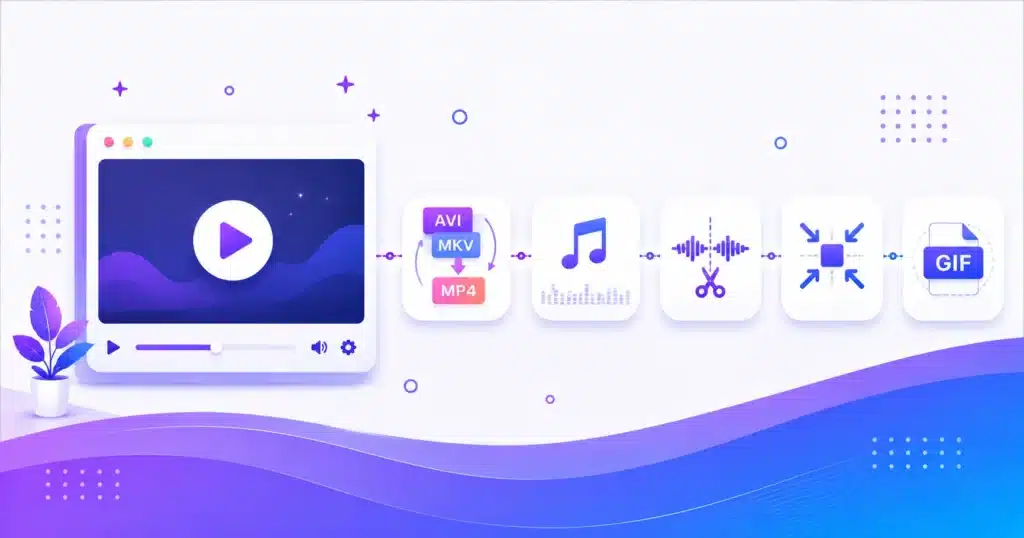
AMTake’s free online video and audio tools let you convert and compress media directly in your browser. Change AVI or MKV to MP4, turn videos into GIFs, extract MP3 audio, trim audio clips and reduce video file size — with no uploads, watermarks or sign-ups. Your files are processed privately on your device, keeping them secure. Ideal for creators, students and everyday users, these media tools deliver fast, high-quality results on any device, completely free.
Convert, Compress and Trim Video & Audio
Media files are big and formats are fussy — a clip that plays on one device stalls on another. AMTake’s video and audio tools convert to universal formats, pull audio out of video, shrink large files and trim clips down. The standout part: everything is processed right inside your browser, so your videos and recordings are never uploaded, and there is no watermark on what you download.
Extract audio (MP3)
Pull the sound out of a video with Video to MP3, MP4 to MP3 or Video to Audio.
Compress video
Shrink a large video to fit an email, upload or chat app with the Video Compressor, keeping the quality you choose.
Trim & cut
Cut a clip to length with the Video Trimmer, or trim audio and make ringtones with the Audio Cutter.
Make a GIF
Turn a short video clip into an animated GIF for reactions and demos with the MP4 to GIF converter.
Convert audio
Switch between MP3, WAV, AAC, OGG and more with the Audio Converter.
Private Media Processing, Right in Your Browser
Nothing is uploaded
Your video and audio are processed on your device, so large or personal files never leave your browser and there is no upload wait.
No watermark, no install
Unlike many free converters, nothing is stamped on your output and there is no desktop software to download.
Quick for everyday clips
Short and medium clips convert and compress fast; very large videos depend on your device’s available memory.
Works on any device
Browser-based on mobile and desktop, though a computer handles big files more comfortably.
How to Convert or Edit Media
- Select your video or audio Drop in your file — it stays on your device the whole time.
- Choose the output Pick the format, quality, or the start and end points for a trim.
- Process & download The tool converts, compresses or trims in your browser, then you download the result — no watermark.
Media Tasks People Do Here
Got a video that will not play? Convert MKV or MOV to MP4 so it opens on any phone or TV. Want just the sound of a lecture or song? Extract the MP3. File too big to send? Compress the video to fit the limit. Making a ringtone or a highlight? Cut the audio or trim the clip. And need a quick reaction for chat? Turn it into a GIF. All free, private and watermark-free.
Frequently Asked Questions
Are these video and audio tools free to use?
Yes. Every tool — format conversion, MP3 extraction, compression, trimming and GIF making — is completely free, with no sign-up, no watermark and no limit on how many files you process.
Are my video and audio files uploaded to a server?
No. This is the big difference: your media is processed directly in your browser, so large videos and private recordings never leave your device — there is no upload wait and nothing is stored on our servers.
Do the tools add a watermark to my video?
No. Unlike many free online converters, nothing is stamped on your output. The video, audio or GIF you download is clean and exactly what you made.
Is there a file size limit?
There is no fixed cap, but because processing happens in your browser, the practical limit depends on your device’s available memory. Short and medium clips convert smoothly; very large videos are best handled on a desktop with plenty of RAM.
Will converting or compressing reduce the quality?
Format conversion, like AVI to MP4, is usually near-lossless. Compression trades some quality for a smaller size, but you control the level, and trimming with a fast cut keeps the original quality because it does not re-encode.
Which format should I convert my video to?
MP4 (H.264) is the safest choice — it plays on virtually every phone, TV, browser and app. That is why the AVI, MKV and MOV converters all output MP4, so a file that would not play before works everywhere.
How do I extract MP3 audio from a video?
Use the Video to MP3 or MP4 to MP3 converter: add your video and it pulls out the audio track as an MP3 you can download — perfect for lectures, podcasts and music videos.
How do I compress a video to make it smaller?
Open the Video Compressor, choose a target quality or size, and it re-encodes the video smaller so it fits an email, upload limit or messaging app — all in your browser, with a preview of the result.
Can I trim or cut a video or audio clip?
Yes. The Video Trimmer cuts a clip to your chosen start and end points (with a fast, lossless option), and the Audio Cutter trims MP3 and other audio — handy for ringtones, highlights and removing dead air.
Can I make a GIF from a video?
Yes. The MP4 to GIF converter turns a short video clip into an animated GIF, with control over the length and size — great for reactions, demos and social posts.
Do the tools work on mobile phones?
Yes, they run in a mobile browser, but heavy jobs like converting or compressing a large video are faster and more reliable on a desktop, because they use more of the device’s memory and processing power.
Do the tools work offline?
Largely, yes. Once the tool has loaded — it downloads a small processing engine on first use — the conversion runs on your device and does not need an active connection to finish.
What formats are supported?
On the video side you can convert AVI, MKV and MOV to MP4, extract MP3 audio, compress, trim and make GIFs. On the audio side you can convert between MP3, WAV, AAC, OGG and more, and cut clips. MP4 and MP3 are the standard outputs.
Why is my large video slow or failing to process?
Because everything runs in your browser, a very large or long video can need more memory than the device or tab has available. Try a shorter clip, compress it first, close other tabs, or switch to a desktop with more RAM.
Can I use these for YouTube or commercial content?
Yes. The tools are free for personal and commercial use and add no watermark, so you can prepare clips for YouTube, social media, courses and client work. Make sure you have the rights to any media you process.